Search Everywhere: the Ctrl+T command palette
Most HTTP debugging tools hide their power behind menus, toolbars and right-click submenus. Fluxzy puts almost all of it behind a single box. Search Everywhere is the command palette in the Fluxzy title bar: press Ctrl+T, start typing, and apply filters, search requests by URL, create rule actions, launch a hooked browser, or run any app command without hunting through the interface.
TL;DR. Press Ctrl+T (Cmd+T on macOS) anywhere in Fluxzy. Type a few keywords. Use the arrow keys to pick a result and Enter to run it. One box covers filters, URL search, rule actions, app launching and commands like capture, export and replay.
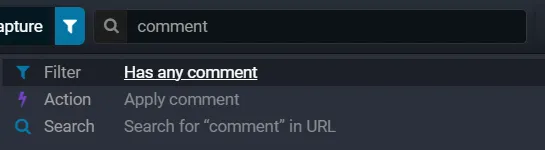
Platform note. The screenshots below are from the Windows app. The feature works the same on macOS and Linux; only the shortcut differs (Cmd+T on macOS, Ctrl+T on Windows and Linux).
What is Search Everywhere?
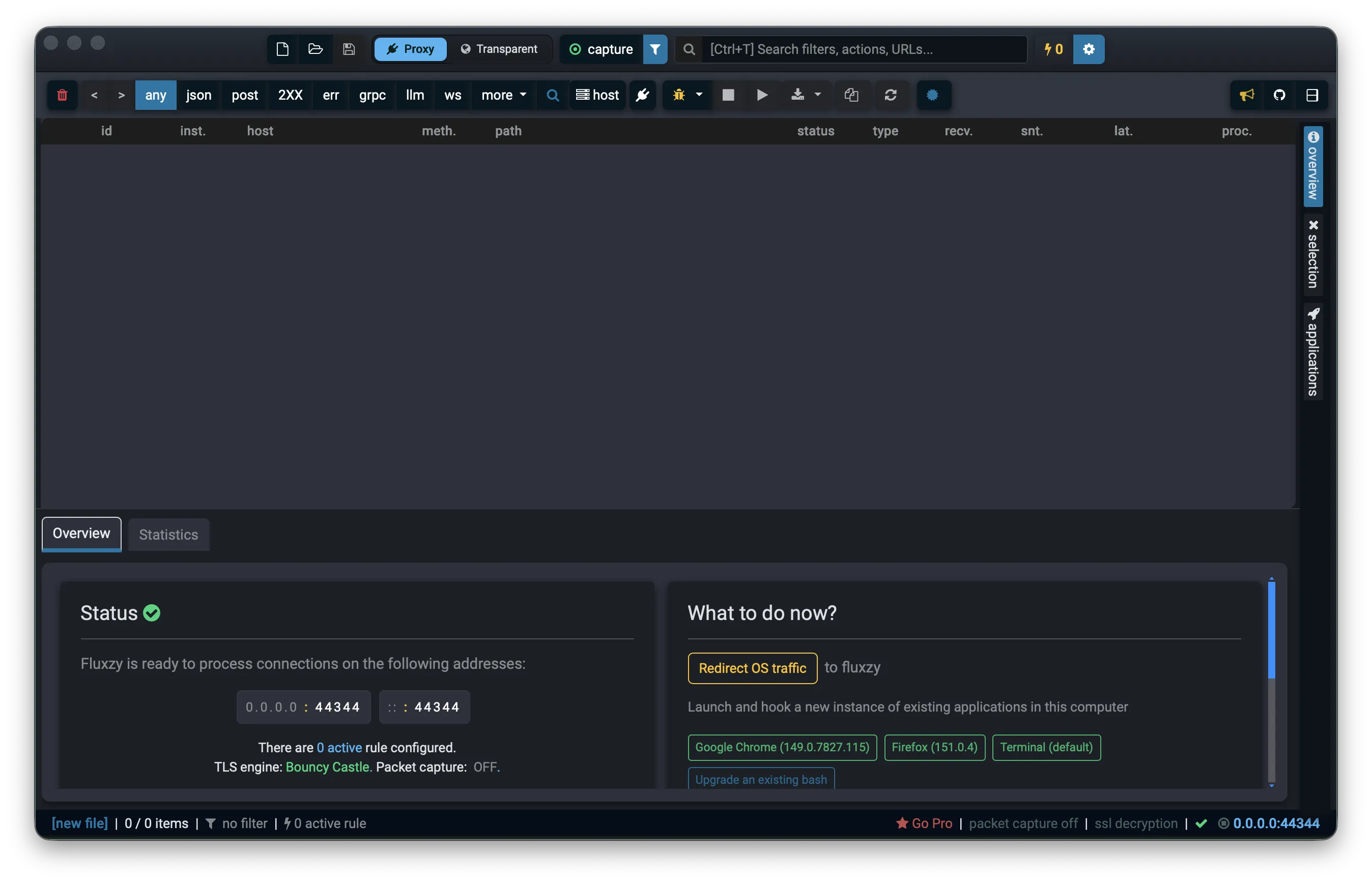
Search Everywhere is a single search field in the title bar that searches across many parts of Fluxzy at once. Instead of remembering where each feature lives, you type what you want and Fluxzy shows matching results grouped by type. The search box sits in the middle of the title bar and shows a hint with the shortcut:

From this one box you can:
- Apply a filter to narrow the traffic view (by host, content type, method, status code and more).
- Search requests by URL when no filter matches your keywords.
- Run an action that turns into a rule (force a protocol, add or remove a header, spoof DNS, and so on).
- Launch a hooked browser or app that is pre-wired to capture through Fluxzy.
- Run an app command such as start or stop capture, export, replay, open settings and more.
Here is the whole window, with sample traffic recorded through the proxy. The search box is top center; results appear in a dropdown beneath it:
How to open Search Everywhere
You can open the palette in three ways:
- Press Ctrl+T (Cmd+T on macOS) from anywhere in the app. This focuses the search box and selects any existing text so you can type a fresh query right away.
- Click the search box in the title bar.
- Open the Edit menu and choose Search everywhere.
When the box is empty it shows the hint Type keywords about filter, action, rule, settings, etc. Start typing and results appear instantly.
What you can do from one search box
Results are grouped by type, each with its own icon, so you can tell at a glance whether a result is a filter, an action, a command, an app to launch, or a plain URL search.
Filter the traffic view
Type a few keywords and Fluxzy suggests view filters that narrow what the exchange list displays. View filters change what you see; they do not change what was captured. For the difference between view filters and source filters, see filtering.
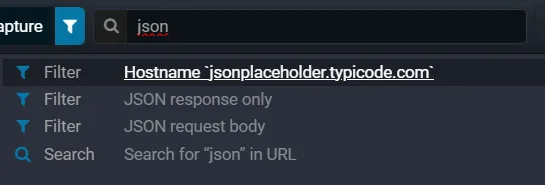
Two kinds of filters show up here:
- Filters built from your captured traffic. In the screenshot above, Hostname
jsonplaceholder.typicode.comappears because that host is present in the recorded exchanges. These contextual filters refresh as you capture more traffic. - A built-in filter library. Fluxzy ships ready-made filters for common needs: JSON, XML, images, CSS, fonts, HTTP methods (GET, POST, PUT, PATCH, DELETE, OPTIONS, HEAD), status codes, gRPC, LLM APIs, WebSocket, form and multipart requests, and filters for exchanges that have a comment, a tag, a request body or a cookie.
Select a filter and it is applied to the current view.
Search requests by URL
When your keywords do not match any filter, Search Everywhere always offers a direct URL search. It is the last entry in the list and reads Search for "..." in URL.

Choosing it applies a view filter that keeps only the exchanges whose URL contains your text. This is the fastest way to jump to a specific endpoint or path.
Run an action (create a rule)
Actions are the building blocks of Fluxzy rules. Type what you want to do to the traffic and Fluxzy suggests matching actions:
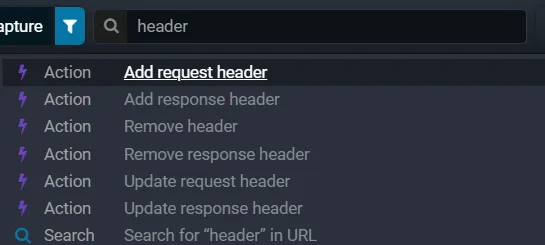
Selecting an action opens the rule editor pre-filled with that action, so you can set the filter it applies to and save it. Available actions include forcing HTTP/1.1 or HTTP/2, adding, updating or deleting request and response headers, applying a comment or tag, removing cache headers, setting a client certificate, skipping remote certificate validation, spoofing DNS, and impersonating a browser. See modifying traffic with rules for the full workflow.
Launch a hooked browser or app
Fluxzy detects browsers and shells installed on your machine. Type launch or capture, or the name of an app, to start a session that is already pointed at the proxy and trusts the Fluxzy certificate, with no system-wide changes:
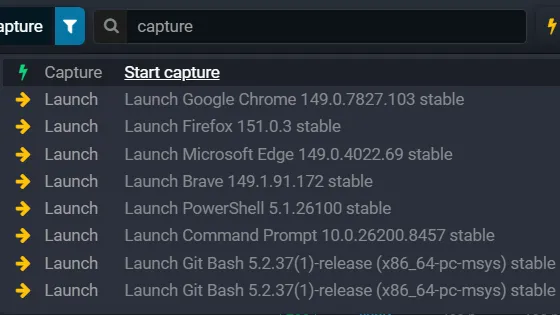
This is the quickest way to capture traffic from a single browser or tool without touching your system proxy.
Run an app command
The palette also runs the commands you would otherwise find in menus and toolbars. Type, for example, export to export the session:
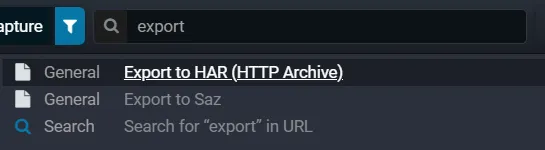
Commands available from Search Everywhere include:
- Capture: start capture and stop capture.
- Files: create a new file, open a file, save as, export to HAR, export to SAZ.
- Rules and settings: access global settings, run the certificate wizard, manage rules, disable all rules, manage saved filters.
- Selection: replay selected requests, comment or tag selected exchanges, download the request or response body, delete selected exchanges.
- Everything: select all exchanges, delete all exchanges.
- Live edit: catch all traffic or catch with a filter.
Some commands act on the exchanges you have selected (replay, comment, tag, download body, delete). Those appear in the results only when at least one exchange is selected.
See it in action: apply a filter
Selecting a filter applies it immediately. The exchange list shrinks to the matching rows, the active filter shows as a pill in the toolbar, and the status bar reports how many exchanges matched. Here the JSON response filter is applied, so the list shows 8 of 13 exchanges:
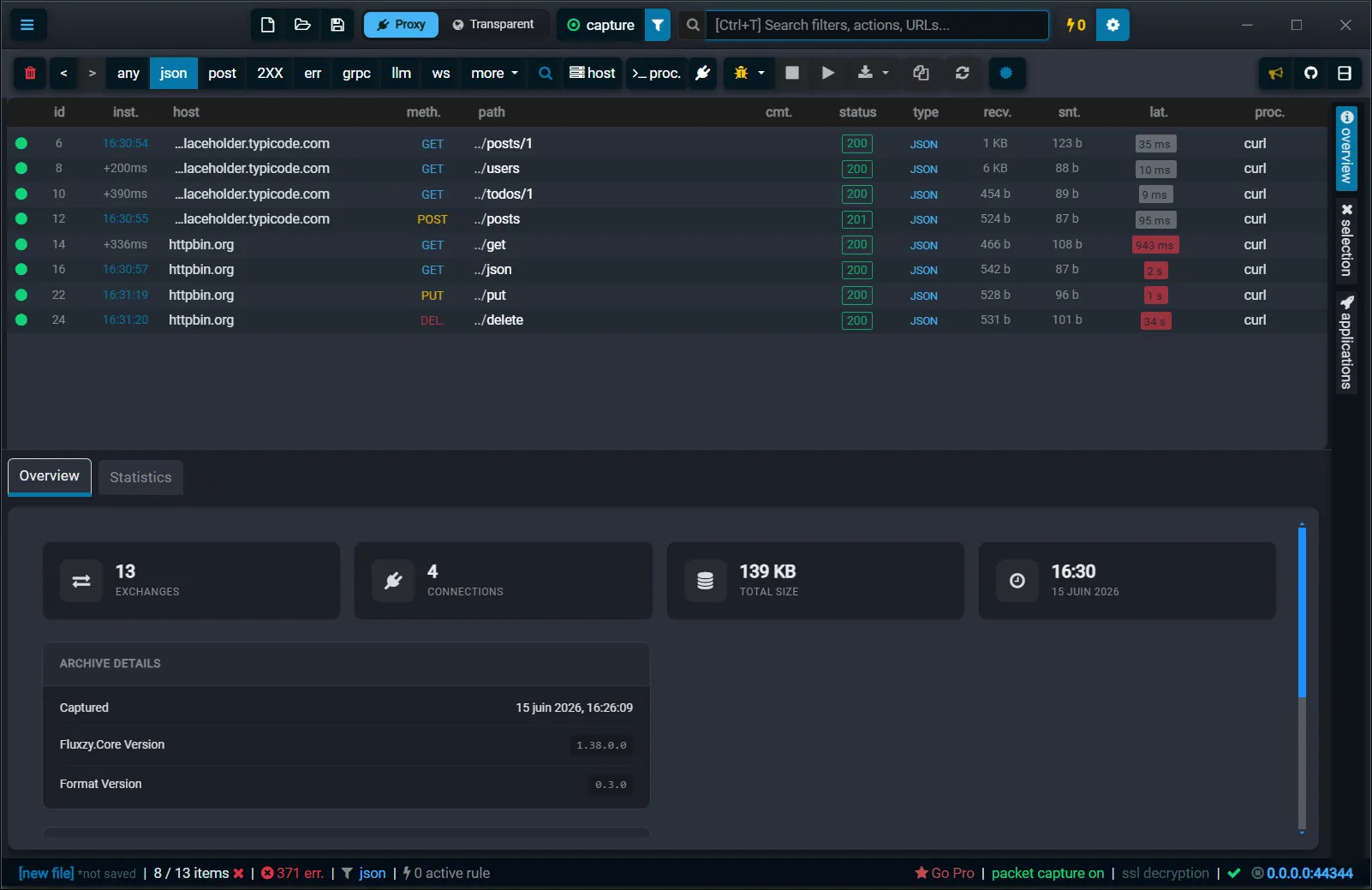
To clear the filter again, click the any pill in the toolbar or the filter chip's close icon.
How search matching works
- Keywords match the label and the keywords of each result. Typing
404finds the status-code filter; typingchromefinds the impersonate action and the Chrome launcher. - Multiple words are combined with AND. Every space-separated word must match, so
update response headernarrows straight to that action. Matching is not case sensitive. - The list is capped for speed. Fluxzy shows the top matching results plus the Search ... in URL entry, so the direct URL search is always one keystroke away.
Combine filters with Ctrl (AND)
By default, picking a filter replaces the current view filter. Hold Ctrl while you select a filter result (press Enter with Ctrl held, or Ctrl-click it) to combine it with the active filter using AND. This lets you stack filters quickly, for example POST requests AND status 500, without opening the filter editor.
Keyboard navigation
Search Everywhere is built for the keyboard:
- Ctrl+T / Cmd+T: open the palette and focus the box.
- Arrow Up and Arrow Down: move between results.
- Enter: run the highlighted result.
- Ctrl+Enter: run a filter result combined with the current filter (AND).
- Escape: close the palette.
Tips to get more out of Search Everywhere
- Start with the verb or the noun. "Replay", "export", "delete" surface commands; "json", "404", "websocket" surface filters; "header", "dns", "http2" surface actions.
- Use it to discover features. Browsing the results for a keyword is a fast way to learn what Fluxzy can do without reading the menus.
- Let host filters build themselves. As you capture, the hosts you visit appear as one-click filters in the palette.
- Reach for it instead of the toolbar. Most toolbar buttons have a palette equivalent, so you can keep your hands on the keyboard.
Frequently asked questions
What is the keyboard shortcut for Search Everywhere?
Ctrl+T on Windows and Linux, Cmd+T on macOS. You can also click the title bar search box or use Edit > Search everywhere.
Does Search Everywhere search inside request and response bodies?
No. It searches Fluxzy's features (filters, actions, commands and apps) and offers a URL search. To search the URL of recorded exchanges, use the Search ... in URL result. To find text inside request and response content, use the Find text in exchanges button (the magnifier in the filter toolbar).
Do filters from Search Everywhere change what is captured?
No. They are view filters: they change what the exchange list displays, not what Fluxzy records. Source filters, which control what gets captured, are set separately.
Why do some commands not appear in the results?
Commands that act on selected exchanges (such as replay, comment, tag, download body and delete selected) only appear when you have at least one exchange selected. Select a row first, then open the palette.
How do I combine two filters?
Hold Ctrl when you pick a filter result. Fluxzy combines it with the active view filter using AND. Without Ctrl, the new filter replaces the current one.
Can I launch a browser from Search Everywhere?
Yes. Type launch or the app name. Fluxzy lists the browsers and shells it detected, and launching one starts a session already configured to capture through Fluxzy, with its certificate trusted and no system-wide changes.
Next steps
- Capture and decrypt HTTPS traffic, then filter it with the palette: see capturing HTTPS traffic.
- Turn an action into a reusable rule to modify requests and responses on the fly.
- Replay selected requests straight from the palette to re-test an endpoint.