Inspect LLM and AI API traffic
When you build on the OpenAI, Anthropic (Claude) or Google Gemini APIs, the most useful debugging view is the one your HTTP client hides from you: the exact JSON you send and the exact JSON (or event stream) you get back. Fluxzy is an HTTP debugging proxy that sits between your code and the provider, decrypts the HTTPS, and shows every prompt, completion, token count, streamed chunk and tool call in clear text.
This guide shows how to inspect LLM API traffic end to end:
- Route your AI calls through Fluxzy
- Filter the exchange list to just the LLM hosts
- Inspect an OpenAI request and response
- Inspect an Anthropic (Claude) request and response
- Read streaming (SSE) responses
- Read tool / function calls
TL;DR. Start a capture, send your OpenAI / Anthropic / Gemini calls through the Fluxzy proxy, click the llm filter pill to isolate the AI hosts, then select any request to read its decoded prompt and completion. Fluxzy ships provider-aware OpenAI Request / Claude Request and OpenAI Response / Claude Response views on top of the raw JSON.
Platform note. The screenshots below are from the macOS app. The workflow is identical on Windows and Linux; only the proxy and certificate setup differ slightly per OS (see Step 1).
Why inspect LLM API traffic
SDKs and frameworks (the openai and anthropic clients, LangChain, your own wrappers) build the request body for you and parse the response back into objects. That is convenient until something is off, and then you need the wire view:
- Confirm the exact
model,systemprompt,messages,max_tokensand tools you actually sent (after every layer of your code touched them). - See the real completion,
stop_reason/finish_reason, and token usage the provider billed you for. - Watch streaming responses arrive as Server-Sent Events, chunk by chunk.
- Verify tool / function calling: which tools you offered and what the model decided to call.
- Debug auth, rate-limit headers, retries and latency at the HTTP level.
Fluxzy decrypts the TLS and decodes all of it, so you read prompts and completions as text instead of opaque encrypted bytes. Everything stays offline on your machine.
For a deeper, agent-focused walkthrough — debugging LangChain, LangGraph, the Microsoft agent framework, and coding agents like Claude Code, Codex and Gemini CLI — see How to debug LLM API calls from your AI agent.
The AI providers at a glance
All three providers speak ordinary HTTPS to a single endpoint, so Fluxzy captures them the same way. The host, path and where the API key travels differ:
| Provider | Host | Path | API key travels in |
|---|---|---|---|
| OpenAI | api.openai.com |
/v1/chat/completions (also /v1/responses) |
Authorization: Bearer header |
| Anthropic (Claude) | api.anthropic.com |
/v1/messages |
x-api-key header (plus anthropic-version) |
| Google Gemini | generativelanguage.googleapis.com |
/v1beta/models/<model>:generateContent |
x-goog-api-key header or a ?key= query parameter |
Keep your key out of screenshots and exports. For OpenAI and Anthropic the key sits in a request header, never in the URL or the body, so the prompt and completion views are safe to share. The exception is Gemini's
?key=form, which puts the key in the URL (and therefore in the exchange list). Prefer thex-goog-api-keyheader, and remember that Fluxzy shows request headers in clear text: crop or redact them before sharing a capture, a HAR or a SAZ export.
Step 1: Route your AI calls through Fluxzy
Start a capture, then send your traffic through the proxy. You first need the Fluxzy root certificate trusted so Fluxzy can decrypt the HTTPS — see Capturing HTTPS traffic if you have not done that yet.
- Click capture in the title bar to start recording.
- Note the proxy address in the status bar (commonly
0.0.0.0:44344). - Point your client at that proxy.
Most HTTP clients honor the standard proxy environment variables, so the quickest test is curl:
# OpenAI through the Fluxzy proxy
curl -x http://127.0.0.1:44344 https://api.openai.com/v1/chat/completions \
  -H "content-type: application/json" \
  -H "authorization: Bearer $OPENAI_API_KEY" \
  -d '{"model":"gpt-4o-mini","messages":[{"role":"user","content":"Hello"}]}'

# Anthropic (Claude) through the Fluxzy proxy
curl -x http://127.0.0.1:44344 https://api.anthropic.com/v1/messages \
  -H "content-type: application/json" \
  -H "x-api-key: $ANTHROPIC_API_KEY" \
  -H "anthropic-version: 2023-06-01" \
  -d '{"model":"claude-opus-4-8","max_tokens":120,"messages":[{"role":"user","content":"Hello"}]}'
For your own app, set HTTPS_PROXY=http://127.0.0.1:44344 (and trust the Fluxzy root CA) before launching it, or use whatever proxy option your SDK exposes. As long as the request flows through Fluxzy and the certificate is trusted, the call appears in the exchange list, decrypted.
Step 2: Filter the exchange list to the AI hosts
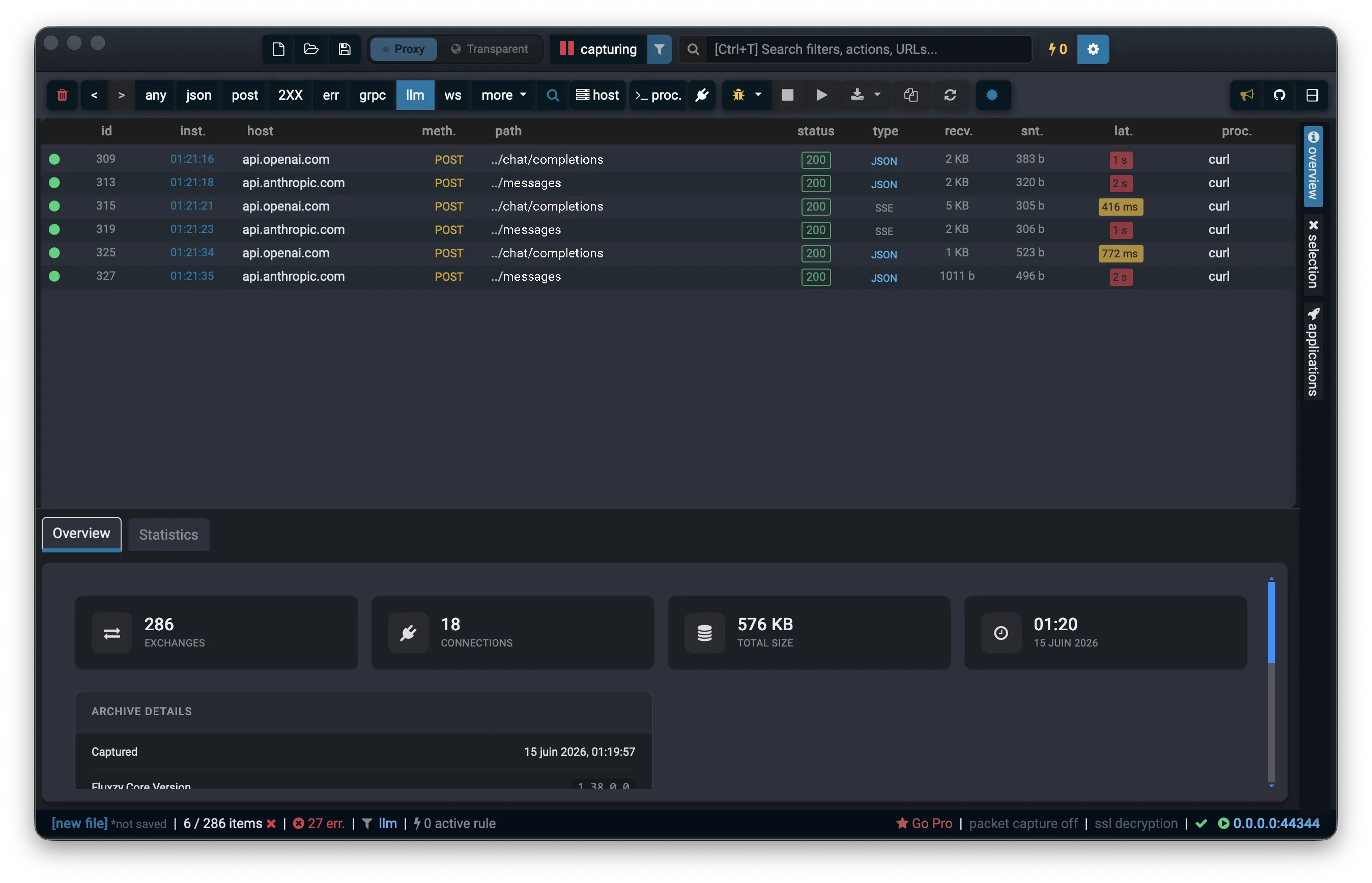
A live capture is noisy: your browser, the OS and background apps all show up. Fluxzy has a built-in llm quick-filter that keeps only known LLM API traffic. Click the llm pill in the filter toolbar:

The list collapses to your AI calls, with the host, method, path, status code and detected body type (JSON for a normal call, SSE for a streamed one) for each exchange. The status bar shows the llm filter is active.
Tip. You can also narrow further with the host filter (for example
api.openai.com) when you want a single provider, then clear it to see them all again.
Step 3: Inspect an OpenAI request and response
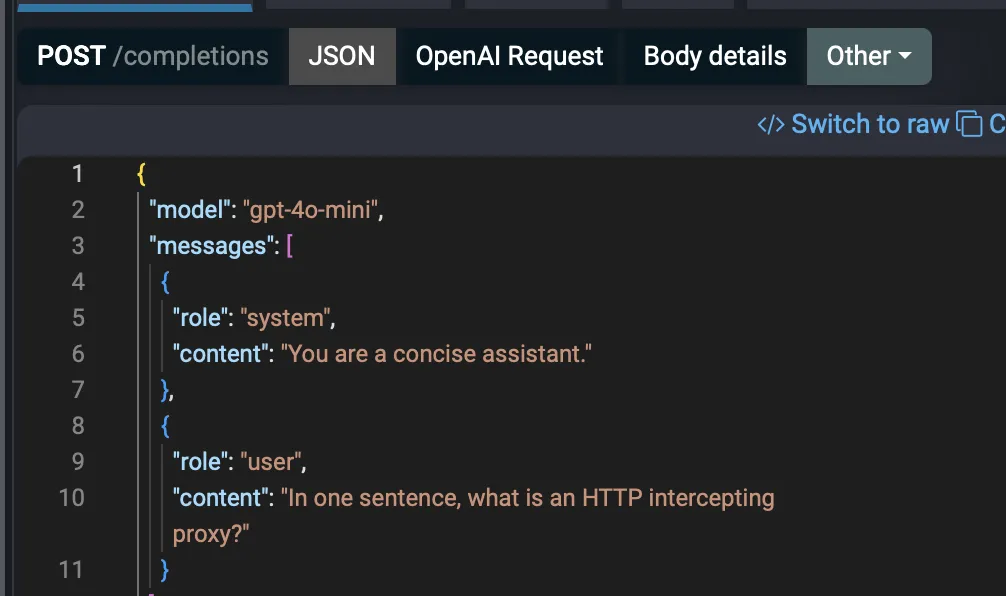
Select any OpenAI row in the list. Fluxzy opens the exchange viewer, split into a Request side and a Response side. Each side offers raw views (JSON) and a provider-aware decoded view (OpenAI Request / OpenAI Response).
On the JSON request tab you see the exact body your client sent: the model, the messages array (system and user turns) and max_tokens:
On the JSON response tab you see what the model returned: the choices array with the assistant message, plus the usage token counts:
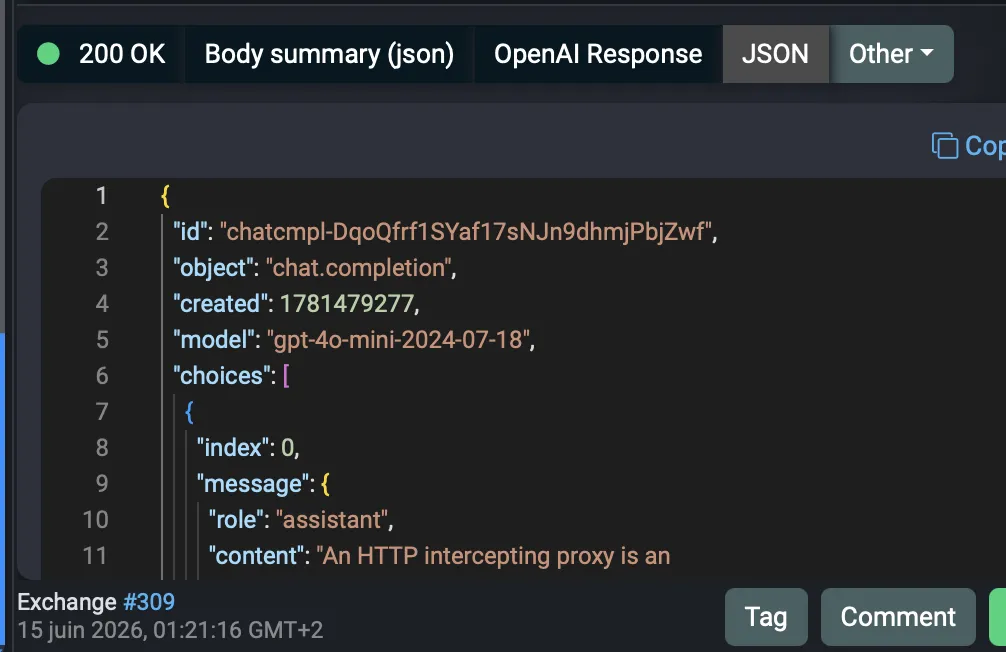
The decoded OpenAI Request and OpenAI Response tabs present the same data in a structured form (model, system prompt, messages, stop reason, token usage), which is handy when the raw JSON gets long.
Step 4: Inspect an Anthropic (Claude) request and response
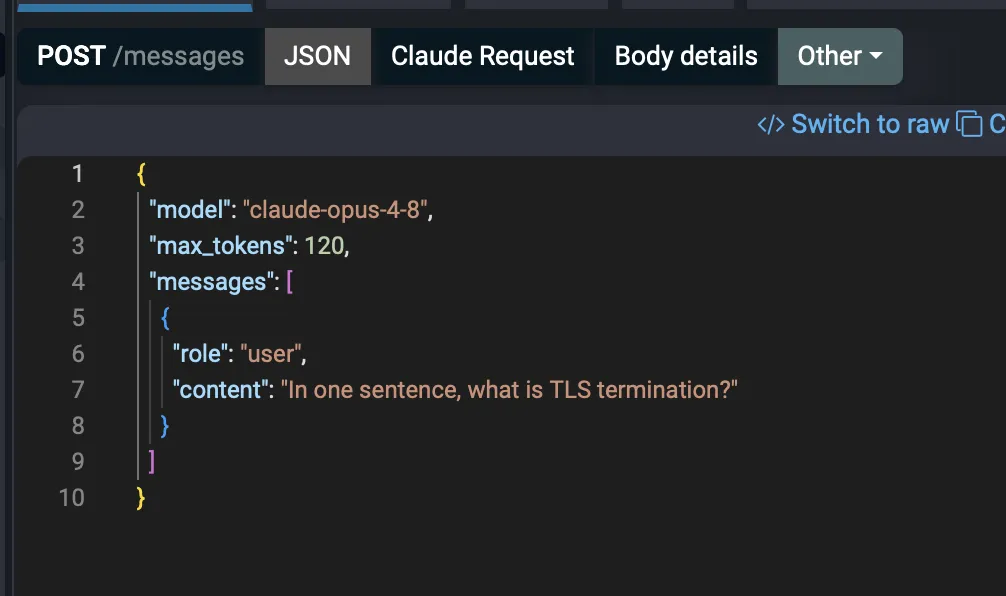
Select an api.anthropic.com row. The viewer works the same way, with Claude Request and Claude Response decoded tabs alongside the raw JSON.
The request body shows the Anthropic Messages shape: model, max_tokens and the messages array:
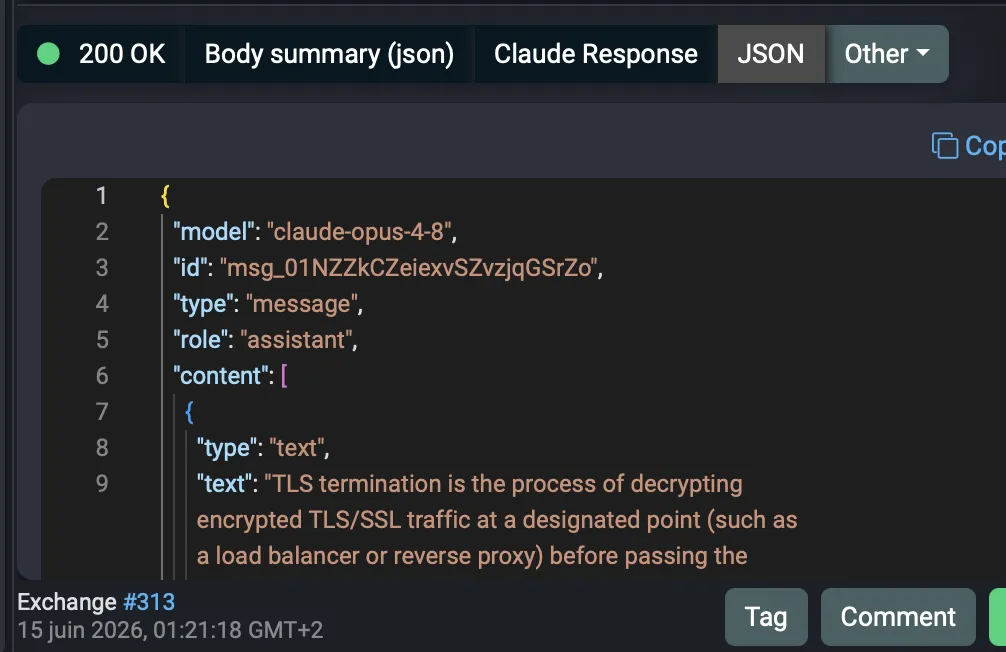
The response body shows the content blocks (here a text block with the answer), the model, the id and the usage:
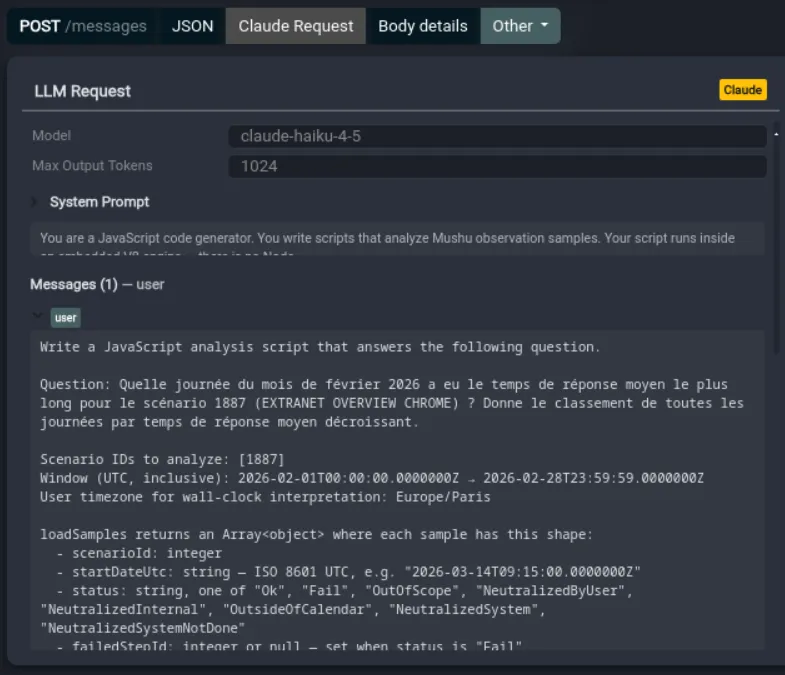
Switch to the decoded Claude Request and Claude Response tabs to read the same exchange in a structured form instead of raw JSON. The request view lays out the model, max output tokens, system prompt and each message turn:
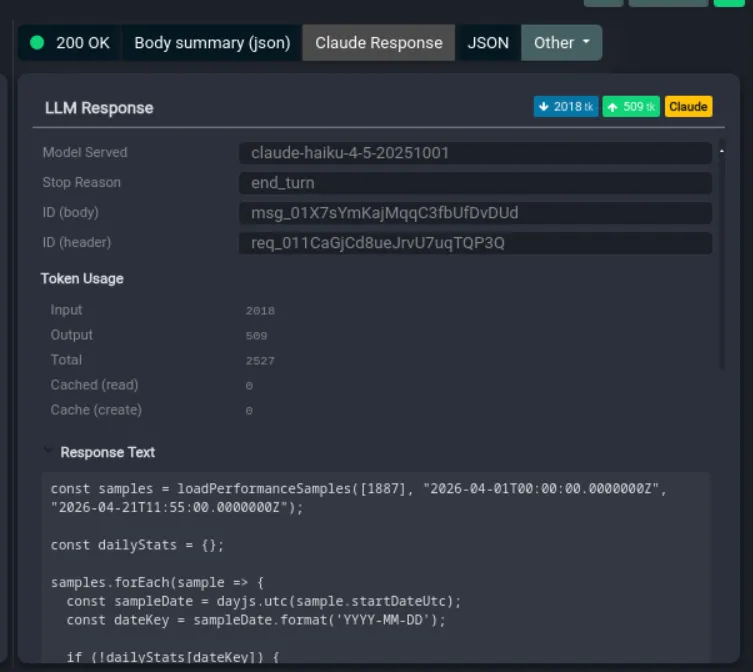
The response view surfaces the model served, stop reason, message id and a full token-usage breakdown (input, output, total, cache read and cache create), with the completion text below:
Because Anthropic puts the key in the x-api-key header (not the body or URL), these prompt and completion views contain no secrets.
Inspecting streaming (SSE) responses
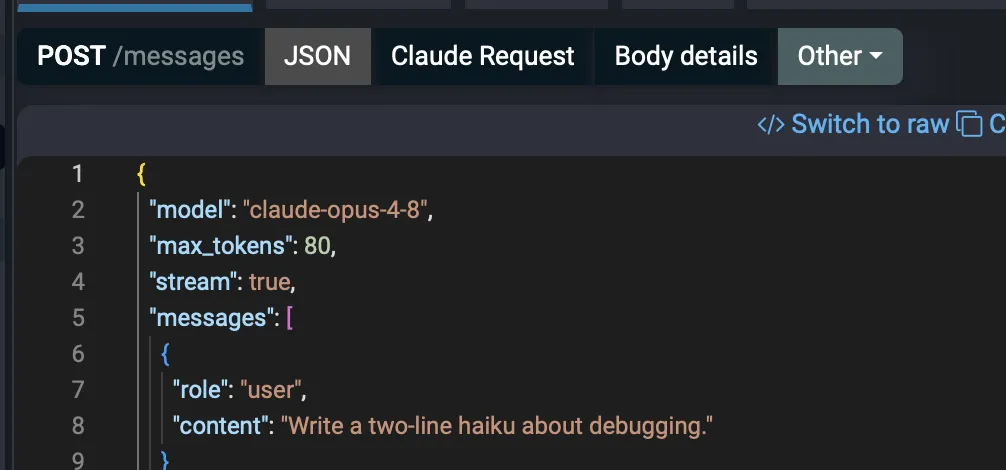
Both OpenAI and Anthropic stream long answers as Server-Sent Events (Content-Type: text/event-stream). A streamed call is marked SSE in the type column. You opt into streaming with "stream": true in the request:
On the response side, open Text content (under Other) to read the raw event stream exactly as it arrived. Each chunk is an event: line plus a data: payload, so you can see how the message is assembled token by token:
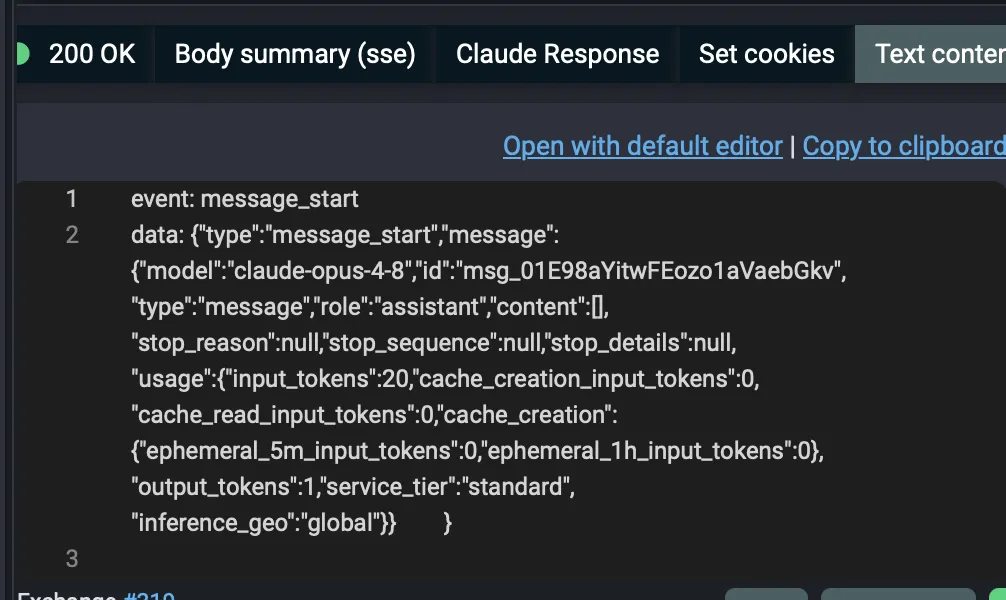
The decoded Claude Response / OpenAI Response tabs reassemble the streamed chunks into the final message and token totals, so you get both the play-by-play and the result.
Inspecting tool / function calls
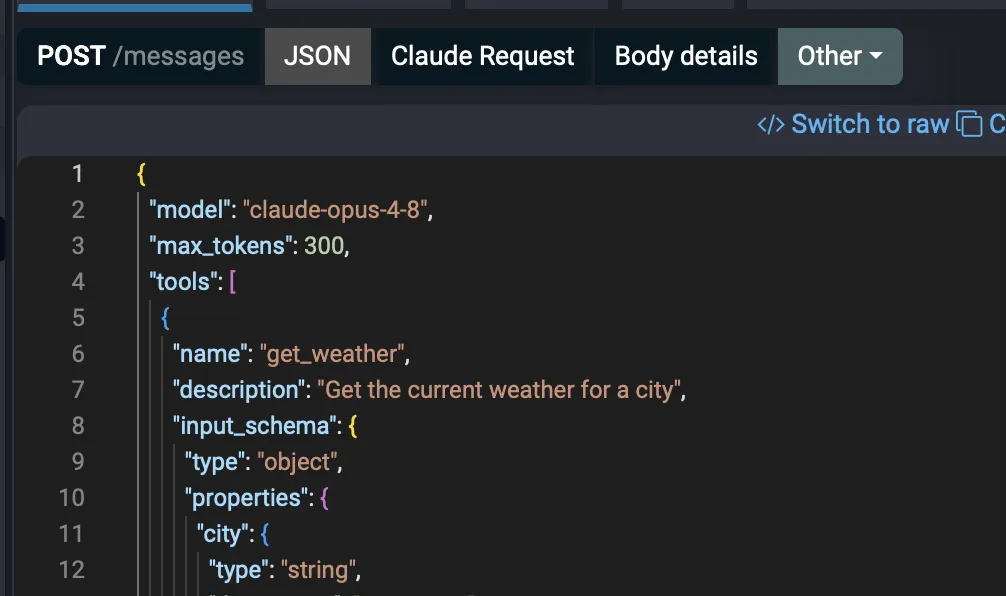
Tool use (Anthropic) and function calling (OpenAI) ride on the same endpoints. The request carries a tools array describing what the model may call:
When the model decides to call a tool, the response carries that decision. For Anthropic it is a tool_use content block with the tool name and the input arguments the model chose:
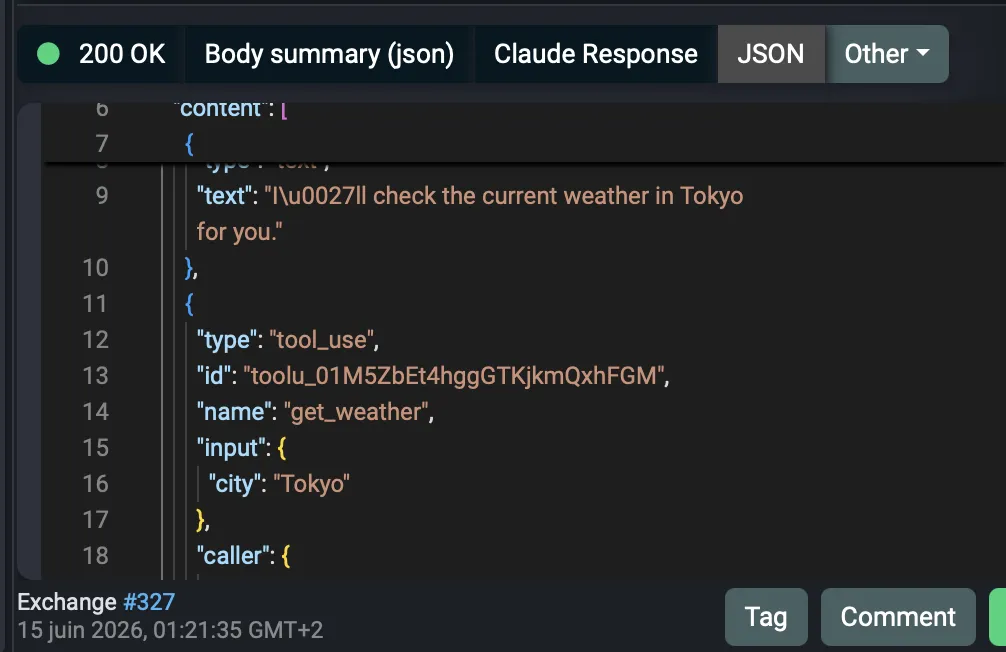
For OpenAI the equivalent appears as a tool_calls array on the assistant message, with the function name and a JSON arguments string. The decoded Claude Response / OpenAI Response tabs surface the stop reason (tool_use / tool_calls) so you can tell at a glance that the model asked to call a tool rather than answering directly.
Other providers (Gemini and beyond)
Fluxzy captures any HTTPS API the same way, so Google Gemini works too even though the screenshots above use OpenAI and Anthropic. Point your Gemini client at the Fluxzy proxy and call https://generativelanguage.googleapis.com/v1beta/models/<model>:generateContent. The request body holds a contents array and the response holds candidates; both decode as JSON in the viewer. Use the host filter (for example generativelanguage.googleapis.com) to isolate Gemini traffic.
One Gemini-specific caution: the API accepts the key either as an x-goog-api-key header or as a ?key= query parameter. The query-parameter form puts your key in the URL, which is visible in the exchange list and in any export. Prefer the header form so your key stays out of the URL.
Other providers and gateways (Azure OpenAI, Amazon Bedrock, OpenRouter, local servers, and so on) also speak HTTPS and appear in Fluxzy; only the host and exact paths change.
Troubleshooting
My AI calls do not appear in the list
- Make sure your client actually uses the proxy. For
curl, pass-x http://127.0.0.1:44344; for an app, setHTTPS_PROXY(andHTTP_PROXY) or the SDK's proxy option before it starts. - Confirm the capture is running (the title bar shows capturing).
- If the client ignores the system proxy, route it explicitly, or use the transparent tunnel.
I see the call but the body is not decrypted
The Fluxzy root certificate is not trusted by the client. Install and trust it (see Capturing HTTPS traffic), and make sure decryption is not disabled for that host.
TLS or certificate errors from my SDK
Some runtimes keep their own certificate store or pin certificates. Trust the Fluxzy CA in that runtime's store, or run the SDK with its proxy and certificate options pointed at Fluxzy. A few clients (notably mobile apps with certificate pinning) cannot be intercepted without disabling the pinning.
The streamed response looks empty in the JSON tab
A streamed response is not a single JSON document, so the JSON tab cannot parse it. Open Text content (under Other) on the response side to read the raw Server-Sent Events, or use the decoded OpenAI Response / Claude Response tab for the reassembled message.
Frequently asked questions
Can Fluxzy decrypt OpenAI, Anthropic and Gemini traffic?
Yes. They are ordinary HTTPS APIs. Once the Fluxzy root certificate is trusted and the client uses the proxy, Fluxzy decrypts the TLS and shows requests and responses in clear text.
How do I show only my LLM API calls?
Click the llm quick-filter pill in the filter toolbar. It keeps known LLM provider hosts and hides the rest. You can combine it with the host filter to focus on a single provider.
Will my API key show up in Fluxzy?
For OpenAI and Anthropic the key is in a request header (Authorization / x-api-key), which Fluxzy shows in clear text in the request header view, but it never appears in the URL or the body. For Gemini, avoid the ?key= URL form so the key does not land in the URL. Be careful sharing screenshots or HAR / SAZ exports: crop or redact the headers first.
Can I see streaming responses token by token?
Yes. Streamed responses arrive as Server-Sent Events. Open Text content on the response side to read each event: / data: chunk, or use the decoded response tab for the reassembled message and token totals.
Can I see how many tokens a call used?
Yes. The response body includes a usage object (input and output tokens), and the decoded OpenAI Response / Claude Response tabs display the token counts directly.
Does this work for tool use and function calling?
Yes. The request shows the tools you offered, and the response shows the model's tool_use block (Anthropic) or tool_calls array (OpenAI), including the chosen tool name and arguments.
Does my prompt data leave my machine?
No. Fluxzy is fully offline, so captured AI API traffic stays local.
Next steps
- Set a breakpoint to tweak a prompt live, replay a call with changes, or compare two completions side by side.
- Use rules to modify requests on the fly: inject a header, rewrite the
model, or mock a provider response for testing. - Export an exchange as
cURLto reproduce a request, or as HAR / SAZ to share a capture (after redacting keys). - Open the raw packet capture in Wireshark when you need the TCP and TLS layer too. See Capture raw packets (PCAP / PCAPNG).