Capture raw packets (PCAP / PCAPNG)
Most of the time you want Fluxzy's decoded view: requests, responses, headers and bodies. Sometimes you need the layer underneath, the actual packets on the wire, so you can study the TCP handshake, retransmissions, timings or the TLS records in Wireshark. Fluxzy can record that raw stream for you in PCAPNG format at the same time it records the HTTP exchanges, and it can capture the TLS session keys so the encrypted packets can be decrypted later.
This guide covers raw packet capture end to end:
- Enable raw packet capture
- Turn on NSS key capture (so Wireshark can decrypt TLS)
- Start capturing
- Export a PCAPNG file
- Open and decrypt the capture in Wireshark
TL;DR. Open Global Settings, go to the Capture option tab, turn on Enable raw capture. Leave Use Bouncy Castle as SSL provider on (under Certificates) so the TLS keys are captured. Start capturing, then use File → Export raw capture (PCAPNG) to save a
.pcapngyou can open in Wireshark.
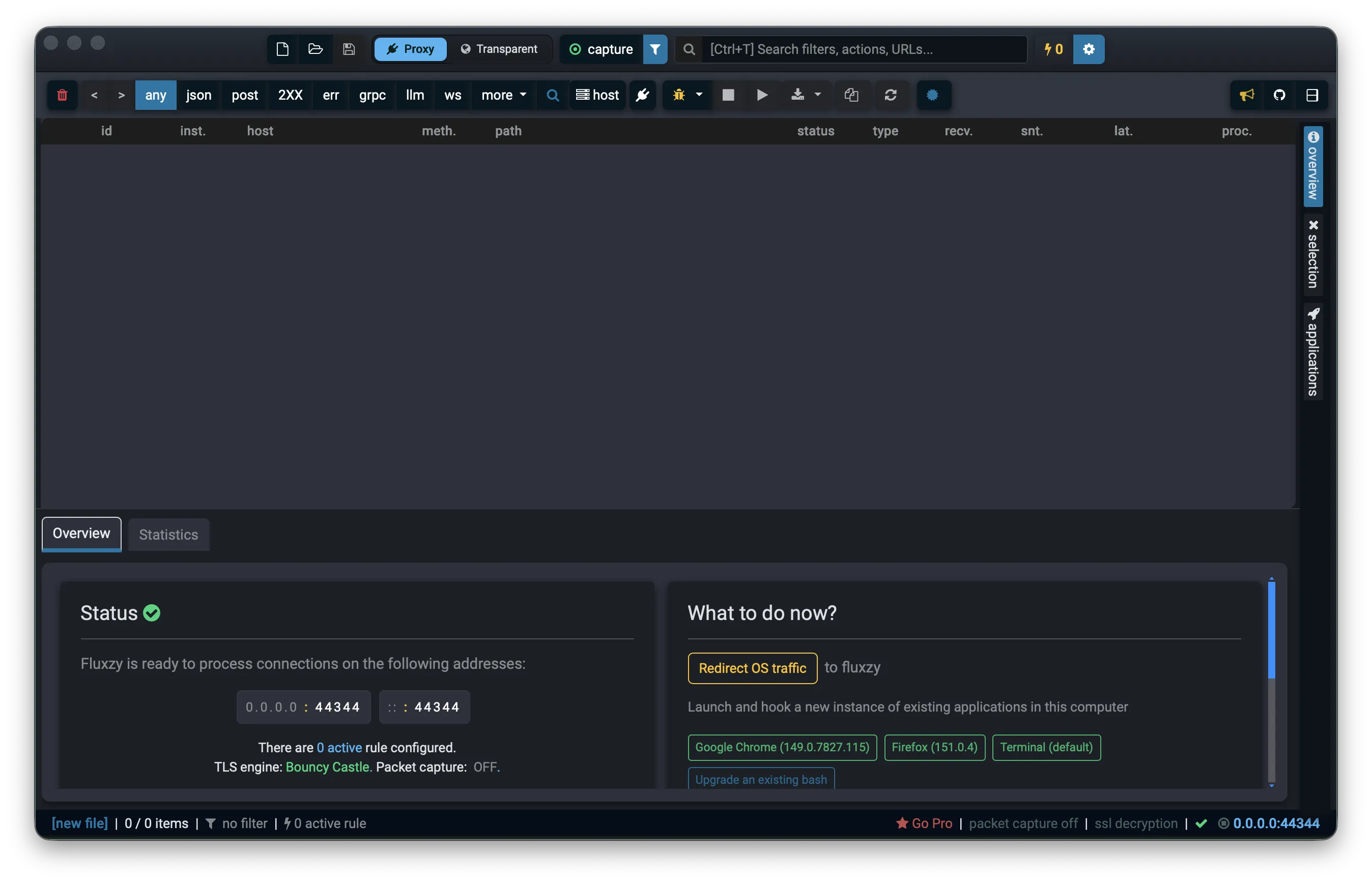
Platform note. The screenshots below are from the macOS app. The workflow is identical on Windows and Linux; only the privilege and non-root details differ (noted in Step 1).
What raw packet capture is (and when to use it)
Raw packet capture records the actual network packets transmitted over the wire, not just the decoded HTTP content. It is the lowest-level view of the traffic, and it is saved in PCAPNG (Packet Capture Next Generation), the modern format that Wireshark and other analyzers read natively.
Reach for it when the decoded HTTP view is not enough:
- You need to see the TCP handshake, window sizes, retransmissions or resets.
- You are debugging TLS at the record level (handshake, cipher, alerts).
- You want to correlate Fluxzy's timings with what the analyzer reports.
- A colleague or a tool expects a standard
.pcapngfile.
Raw capture runs alongside normal recording. You still get the full Fluxzy exchange list; the packets are an extra layer stored with the session.
How raw packet capture works in Fluxzy
Capturing packets requires low-level access to a network interface, which the operating system restricts. Fluxzy offers two ways to get that access:
- In-process capture: Fluxzy reads the packets itself, inside the desktop application.
- Out-of-process capture: a separate helper process does the capture. Use it on Linux and macOS so you do not have to run the whole desktop application as root.
Either way the output is the same PCAPNG. The status bar reports which mode is active: packet capture on (with a tooltip of in process or out of process), or packet capture off.
To make the encrypted packets readable in Wireshark, Fluxzy can also record the TLS session keys (an NSS key log) while it captures. That is what Step 2 turns on.
Step 1: Enable raw packet capture
Open Global Settings (the gear icon in the title bar, top right), then select the Capture option tab. The first section is Raw Packet Capture.
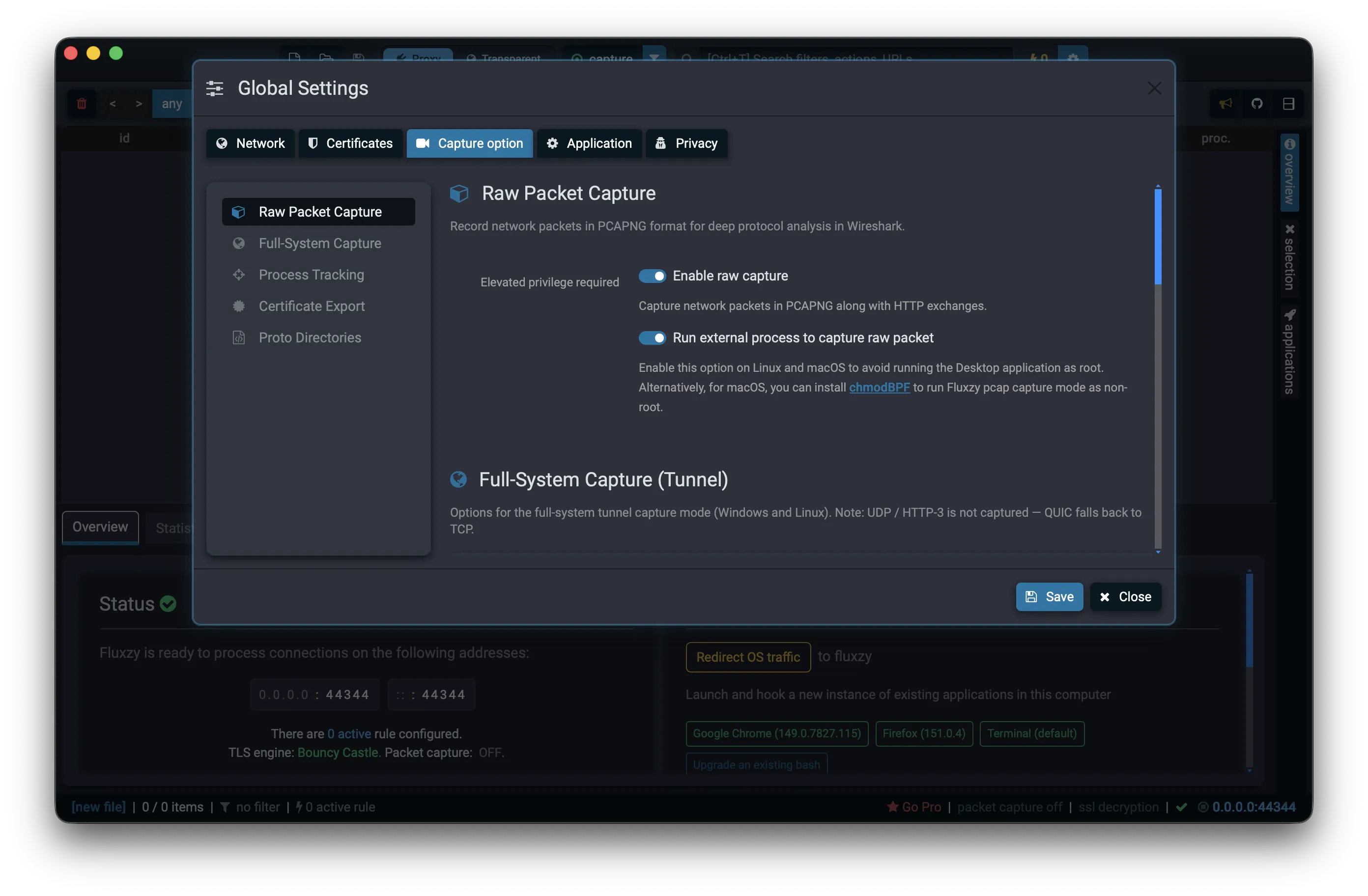
Turn on Enable raw capture. This records network packets in PCAPNG along with the HTTP exchanges.
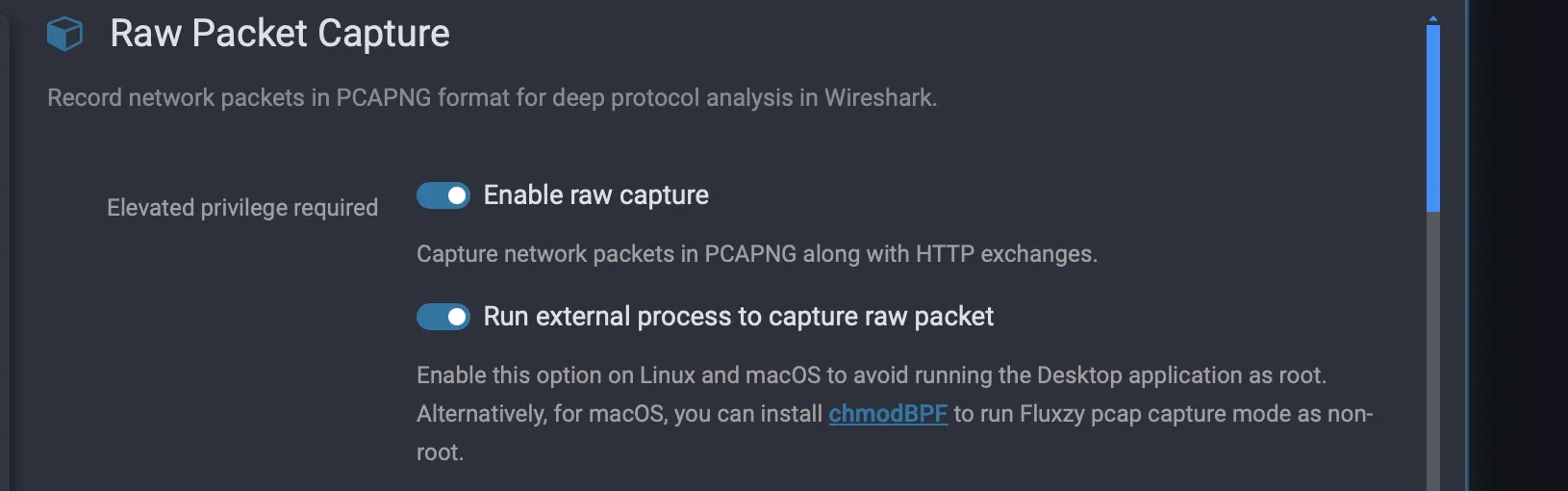
The note Elevated privilege required is a reminder that packet capture needs privileged access. How you grant it depends on the mode you choose next.
Choose in-process or out-of-process capture
The second toggle, Run external process to capture raw packet, selects the capture mode:
- Off (in-process): Fluxzy captures inside the desktop application. The application itself needs the privilege to read the interface.
- On (out-of-process): a separate helper does the capture. Turn this on on Linux and macOS so you do not have to run the desktop application as root.
Run capture without root (macOS and Linux)
On macOS you can grant packet access once instead of elevating every time. Install chmodBPF (it ships with Wireshark), which puts your user in the access_bpf group and lets Fluxzy capture in pcap mode as a normal user. The settings panel links to it directly. After that, raw capture starts without a password prompt.
On Windows, packet capture runs with administrator privileges; approve the elevation prompt when Fluxzy asks for it.
Click Save to keep your choice.
Step 2: Turn on NSS key capture to decrypt TLS in Wireshark
Packets carrying HTTPS are encrypted, so in a plain capture Wireshark only shows opaque TLS records. To make them readable it needs the TLS session keys. Fluxzy can record those keys (an NSS key log) during capture, but only when its SSL engine is Bouncy Castle.
Go to the Certificates tab and find SSL Settings. Make sure Use Bouncy Castle as SSL provider is on. The panel confirms it: Bouncy Castle allows NSS key capture (view raw packet capture in clear text).
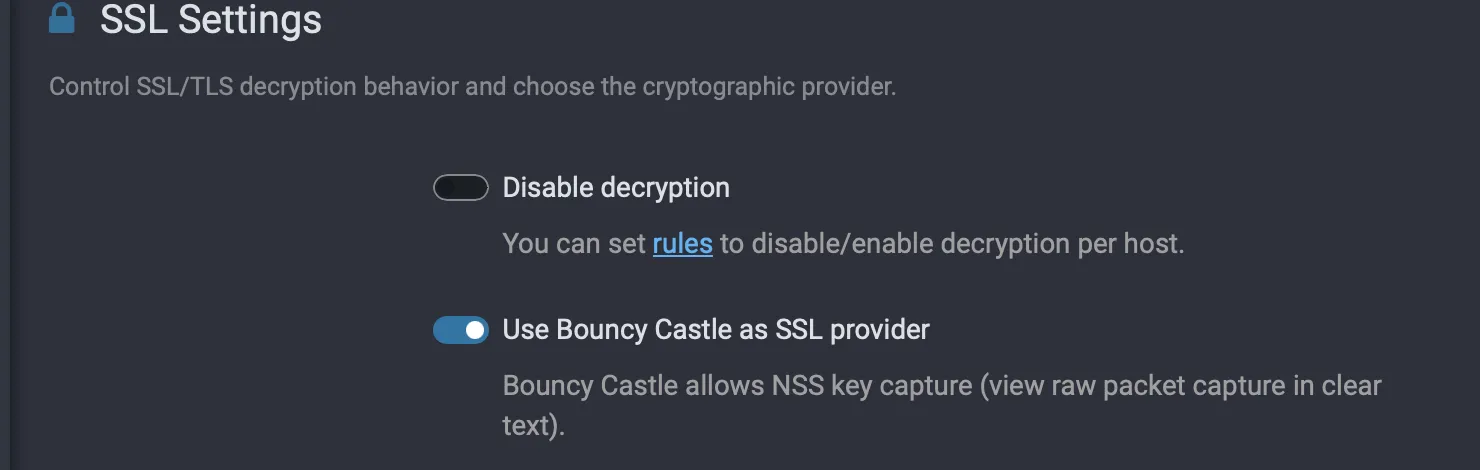
Leave Disable decryption off so Fluxzy decrypts TLS (and therefore has the keys to log). You can still disable or enable decryption per host with rules. See Capturing HTTPS traffic for more on the SSL settings.
Bouncy Castle is the default SSL engine, so in most cases this is already set. If you only need the raw packets and do not care about decrypting TLS, you can skip this step.
Step 3: Start capturing
Start a capture the normal way: click capture in the title bar, then send some traffic through Fluxzy. With raw capture enabled, Fluxzy records the packets for every connection it handles.
Confirm it is recording in the status bar at the bottom of the window. It reads packet capture on:

If it still reads packet capture off, raw capture was not enabled before the session started. Stop capturing, enable it in Step 1, and start again.
Step 4: Export a PCAPNG file
When you are ready to analyze the packets, export them to a standalone .pcapng. Open the File menu and choose Export raw capture (PCAPNG), then pick one of:
- Export all: every captured packet in the session (suggested file name
export.pcapng). - Export only from filtered exchanges: only the packets for the exchanges currently visible after your filter (suggested file name
export-filtered.pcapng).
Choose where to save the file and you are done. The result opens directly in Wireshark or any PCAPNG-aware tool.
Note. PCAPNG export lives in the File menu, not in the toolbar export button. That toolbar button exports the decoded HTTP traffic (HAR, SAZ, cURL), which is a different thing.
If the export reports that no pcap file was found, raw capture was not enabled while the traffic was recorded. Enable it (Step 1) and capture the traffic again; Fluxzy can only export packets it actually recorded.
Analyze the capture in Wireshark (load the NSS keys)
Open the exported .pcapng in Wireshark. Without keys you see the TCP and TLS structure but the HTTPS payloads stay encrypted. To read them, give Wireshark the TLS session keys Fluxzy captured in Step 2.
The quickest decrypted view is per connection, from inside Fluxzy. Select an exchange, open its Connection panel, and use the PCAP controls in the panel header:

- open: opens the PCAPNG for the single TCP connection used by the selected exchange, in your default PCAPNG viewer.
- download: saves that connection's packets as
connection-<id>.pcapng.
When Use Bouncy Castle as SSL provider was on during capture (Step 2), this per-connection PCAPNG already embeds the TLS session keys (the SSLKEYLOGFILE) inside the file. Recent versions of Wireshark read those embedded keys automatically, so the HTTPS payloads appear in clear text immediately, with no key log to load and no preferences to set. The same panel also exposes an SSLKEYLOG entry with a copy-to-clipboard button if you ever need the raw key material.
To decrypt a full session export in Wireshark using a key log, point Wireshark at the NSS key log file: Edit → Preferences → Protocols → TLS, then set (Pre)-Master-Secret log filename. Wireshark then decrypts every TLS session whose keys are in that log. (On macOS the Preferences menu is Wireshark → Preferences.)
Grab the PCAP for a single connection
You do not always need the whole session. As shown above, every connection has its own PCAP open and download buttons in the Connection panel, so you can pull the packets (and the keys) for just the request you care about without exporting everything.
Troubleshooting raw packet capture
"Unable to create capture host" when starting capture
Fluxzy could not start the packet capture host. Common causes and fixes:
- The capture process lacks privileges. On macOS and Linux, turn on Run external process to capture raw packet and install chmodBPF (macOS), or start the app elevated. On Windows, approve the elevation prompt.
- If out-of-process capture fails on your machine, try in-process instead (turn the external process toggle off), or the reverse. One mode may be available where the other is not.
Export says no pcap file was found
Raw capture was off while the traffic was recorded, so there are no packets to export. Enable raw capture (Step 1), capture the traffic again, then export. Fluxzy can only export packets that were captured.
The status bar shows "packet capture off"
The setting is applied when a capture session starts. Enabling it mid-session does not retroactively record packets. Stop capturing, confirm Enable raw capture is on, and start a new session.
Wireshark shows TLS but cannot read the HTTPS payloads
Wireshark does not have the keys. Make sure Use Bouncy Castle as SSL provider was on during capture (Step 2), then either open the connection's PCAPNG from Fluxzy with the open button (already keyed) or load the NSS key log in Wireshark's TLS preferences.
Frequently asked questions
What file format does Fluxzy use for packet capture?
PCAPNG (Packet Capture Next Generation), the modern standard that Wireshark and most analyzers read natively.
In-process or out-of-process capture: which should I use?
On Linux and macOS, prefer out-of-process so you do not run the desktop application as root, especially with chmodBPF installed on macOS. If out-of-process capture is not available on your machine, use in-process. Both produce the same PCAPNG.
Do I need administrator or root privileges?
Capturing packets is a privileged operation, so yes in general. The non-root paths are out-of-process capture plus chmodBPF on macOS, and approving the elevation prompt on Windows.
Can I decrypt the HTTPS packets in Wireshark?
Yes. Keep Use Bouncy Castle as SSL provider on so Fluxzy records the TLS session keys (NSS key log). Open a connection's PCAPNG from Fluxzy with the open button to get a decrypted view immediately, or load the key log in Wireshark under Protocols → TLS → (Pre)-Master-Secret log filename.
Does raw capture slow down or replace the normal HTTP recording?
No. Raw capture runs alongside the usual recording. You still get the complete Fluxzy exchange list; the packets are an additional layer stored with the session.
Can I capture packets for just one request?
Yes. Open the exchange, go to its Connection panel, and use the PCAP open or download button to get that single connection's packets.
Next steps
- Filter the exchange list first, then use Export only from filtered exchanges to keep the PCAPNG focused on what you care about.
- Pair raw capture with rules to disable decryption per host when you want the encrypted packets left untouched.
- Export the decoded HTTP traffic too (HAR or SAZ) from the toolbar export button when you need a higher-level view to share.