Replay and resend requests
When you are debugging an API or a web page, you often need to send the same request again: to reproduce a bug, to check a fix, or to see how the server responds the second time. Fluxzy lets you replay any request it has captured. It re-sends the exact request through the proxy and records the new response as a fresh entry, so you can compare runs without touching your application or your browser.
TL;DR. Select a request in the exchange list, click replay in the toolbar, and Fluxzy re-runs it and adds the result to the list. To change something first (a header, the body, the connection), use replay request in live edit, which pauses the request so you can edit it before it is sent.
Platform note. The screenshots below are from the Windows app. The steps are identical on macOS and Linux.
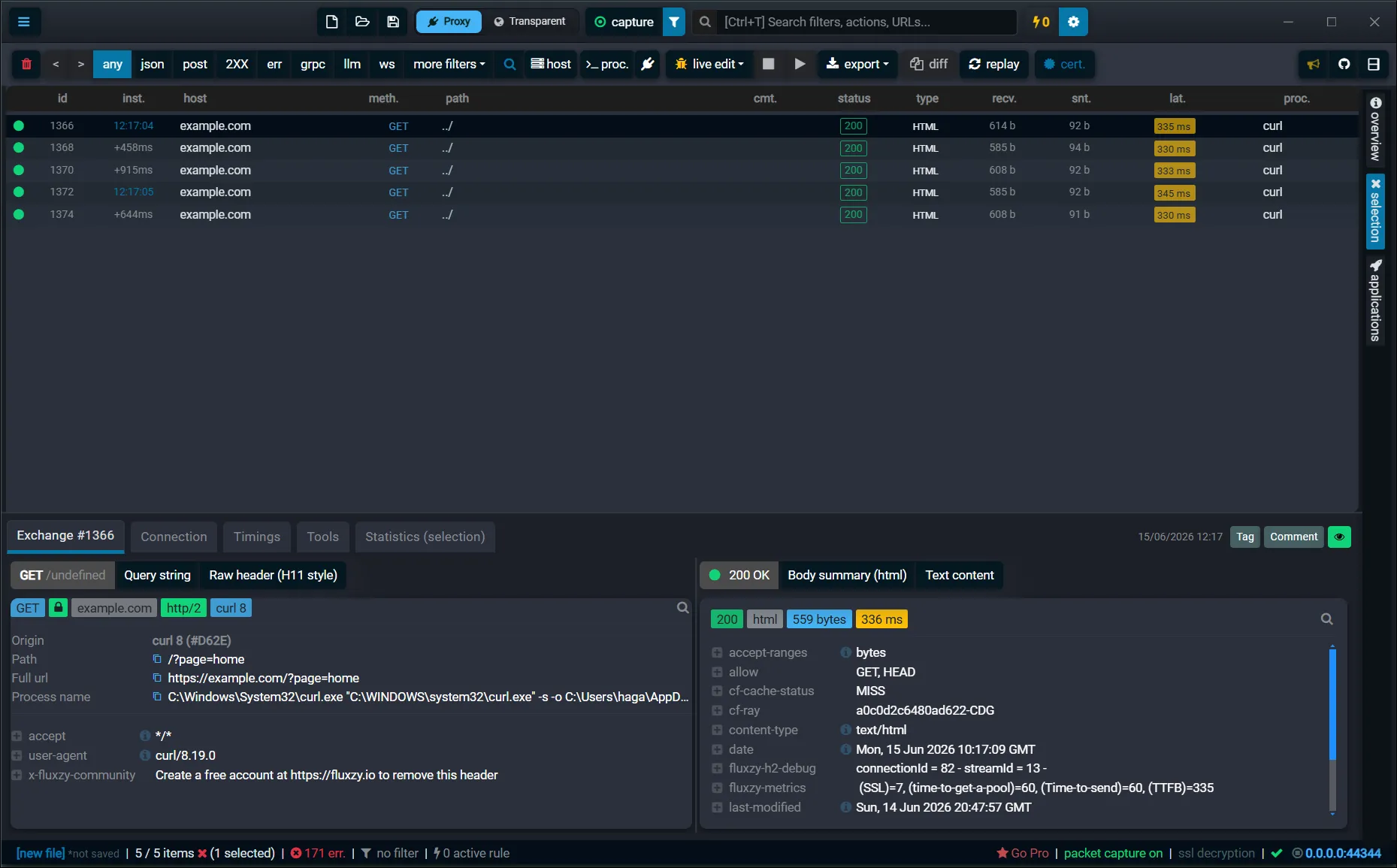
What request replay is
Replay takes a request Fluxzy already recorded and sends it again through the proxy. The original exchange is left untouched; the re-run shows up as a new exchange in the list, with its own response, timing, and size. Fluxzy offers two ways to replay:
- Replay re-sends the request exactly as it was captured.
- Replay in live edit pauses the request at a breakpoint first, so you can edit the connection, the request, or the response before it continues.
It is the fastest path from "it failed once" to a reliable repro: resend the failing request until you can see the cause, apply your fix, then replay again to confirm. You will need at least one request in the exchange list to replay — see Capturing HTTPS traffic if you have not captured anything yet.
Replay a captured request
This is the fastest path: one click in the toolbar.
In the exchange list, click the request you want to re-run so it is selected.
In the filter toolbar, click replay (the circular-arrows button).

Fluxzy re-sends the request through the proxy. The re-run appears as a new entry at the bottom of the list, with a fresh timestamp.

The toolbar button replays the request that is currently selected. If the button is greyed out, no request is selected yet: click a row in the list first. (Its tooltip reads "Select an exchange to replay" until you do.)
Replay with live edit (modify the request before it is sent)
Use live edit when you want to change the request before re-sending it, for example to tweak a header, alter the body, or force a new connection.
Select the request, then open the Tools tab in the request details pane.
Click replay request in live edit (the button with the bug icon).

The Live edit window opens with the request paused ("in pause"). Step through Connection set up, Edit request, and Edit response, changing whatever you need. Options include Force new connection and Skip SSL validation.
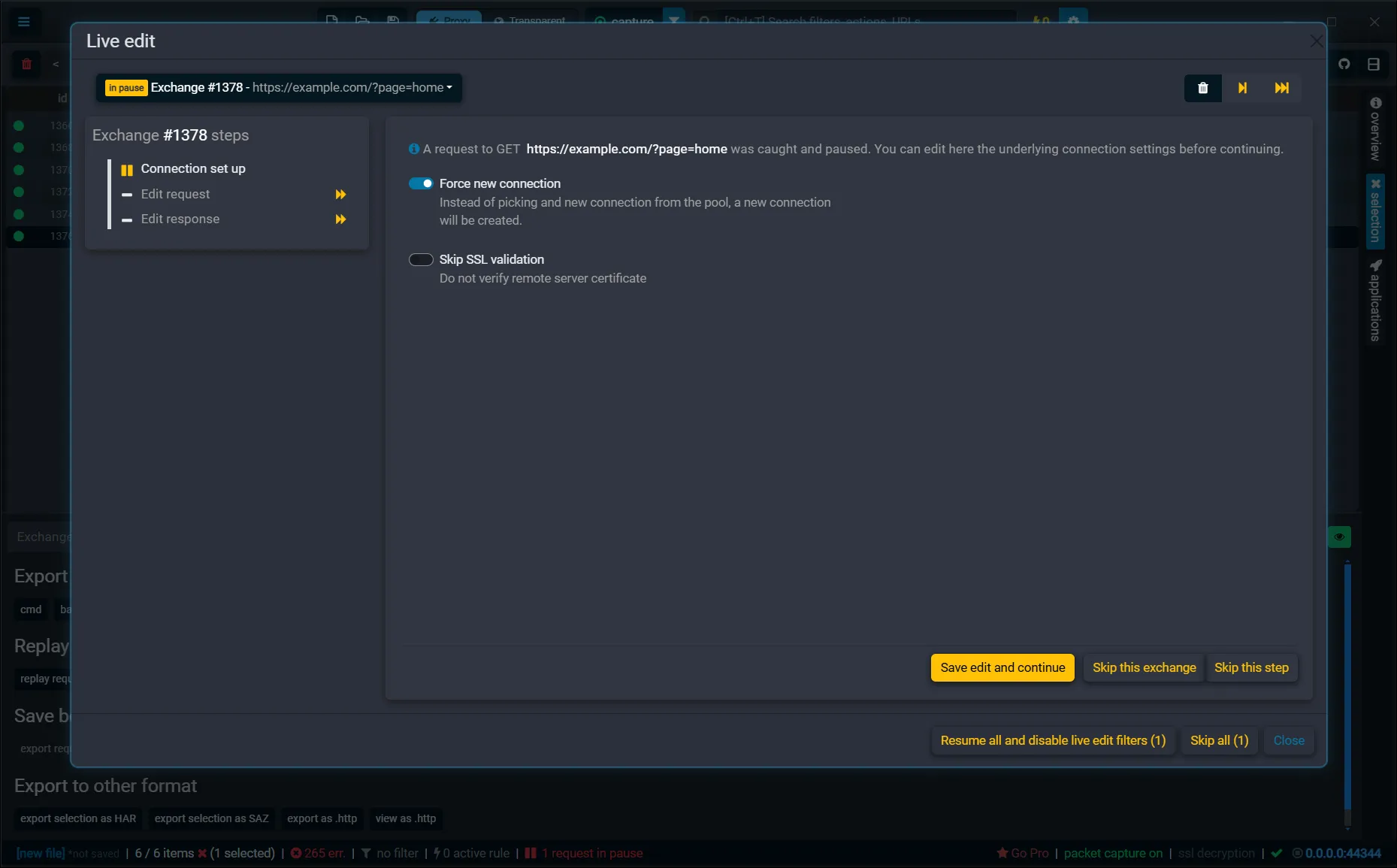
Click Save edit and continue to send the edited request to the next step, or Skip this step to leave a step unchanged. When you are finished, click Resume all and disable live edit filters to release any paused requests and turn live edit off.
Live edit is the same mechanism as breakpoints — replay just starts it for you on a request you already captured.
Frequently asked questions
Does replay change or overwrite the original request?
No. Replay always creates a new exchange. The original stays in the list exactly as it was, so you can compare the two runs side by side.
Where does the replayed request appear?
In the same exchange list, as a new row at the bottom with a new id and timestamp. Select it to see its response, headers, timings, and body like any other exchange.
What is the difference between "replay" and "replay request in live edit"?
Plain replay re-sends the request unchanged. Replay in live edit pauses the request at a breakpoint first, so you can edit the connection, request, or response before it is sent. Use plain replay to reproduce, and live edit to experiment.
Can I modify a request before resending it?
Yes. Use replay request in live edit to change the URL, method, headers or body before the request is sent, which is ideal for probing API behaviour.
Can I compare the replayed response to the original?
Yes. Use Fluxzy's diff view to compare the original and replayed exchanges field by field.
Can I replay several requests at once?
Yes. Select multiple requests in the list, then open the command palette with Ctrl+T and run Replay selected requests. Each selected request is re-sent in turn.
Where is the replay button?
In the filter toolbar above the exchange list, shown as a circular-arrows icon labelled replay. You can also replay from the Tools tab of a selected request (the replay request button).