Modify traffic below the HTTP layer
Most debugging proxies stop at the HTTP message: they add a header, rewrite a body, or mock a response. Fluxzy does all of that too, but it can also reach below the HTTP layer and change the transport itself: the TLS handshake your traffic presents, how hostnames are resolved, which HTTP version is negotiated, and which certificates are used.
These changes apply to the connection between Fluxzy and the remote server (the upstream leg), so the remote sees a connection shaped exactly the way you want, regardless of what your client actually sent.
TL;DR. Open the Rules manager, click Add rule, and pick one of the below-HTTP actions: Impersonate or Set JA3 fingerprint (TLS), Spoof dns or DNS over HTTPS (name resolution), Force using HTTP/1.1 or Force using HTTP/2.0 (protocol), or Use certificate (certificates). Scope it with Apply When, save, and the next matching connection is reshaped.
Platform note. Screenshots below are from the Windows app. The workflow is identical on macOS and Linux.
Beyond request and response
A rule pairs an action (what to do) with a filter (which traffic it runs on). Alongside the header and body actions, Fluxzy ships a set of actions that operate under HTTP. This guide focuses on seven of them, grouped by the layer they touch:
| Layer | Action (as shown in the picker) | What it changes |
|---|---|---|
| TLS | Impersonate | TLS fingerprint, HTTP/2 settings and headers, from a browser profile |
| TLS | Set JA3 fingerprint | The raw JA3 string used in the TLS handshake |
| Certificates | Use certificate | The server certificate Fluxzy presents |
| DNS | Spoof dns | Pins a hostname to a fixed IP and/or port |
| DNS | DNS over HTTPS | Resolves names over DoH instead of the OS resolver |
| Protocol | Force using HTTP/1.1 | Forces the upstream connection to HTTP/1.1 |
| Protocol | Force using HTTP/2.0 | Forces the upstream connection to HTTP/2 |
This is a deliberately small sample of a wide area. The point is not to cover every option, but to show that Fluxzy can modify things well beyond the HTTP request and response.
Where these actions live
All of these are regular rule actions. Click the rules button in the title bar (the bolt icon next to Settings) to open Manage Rules, then click Add rule to open the Select an action dialog. The below-HTTP actions sit in two categories.
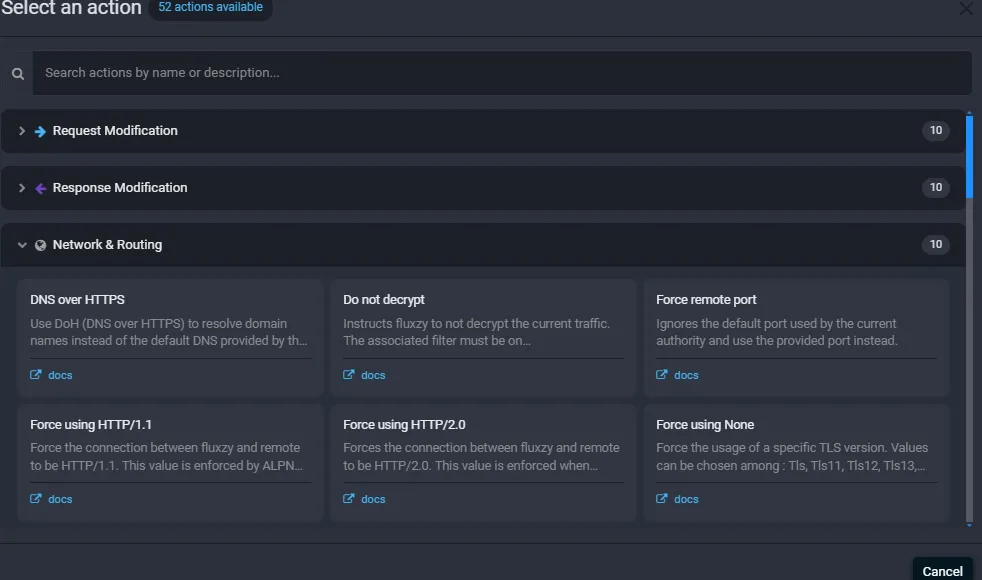
The Network and Routing category holds the DNS and HTTP-version actions:
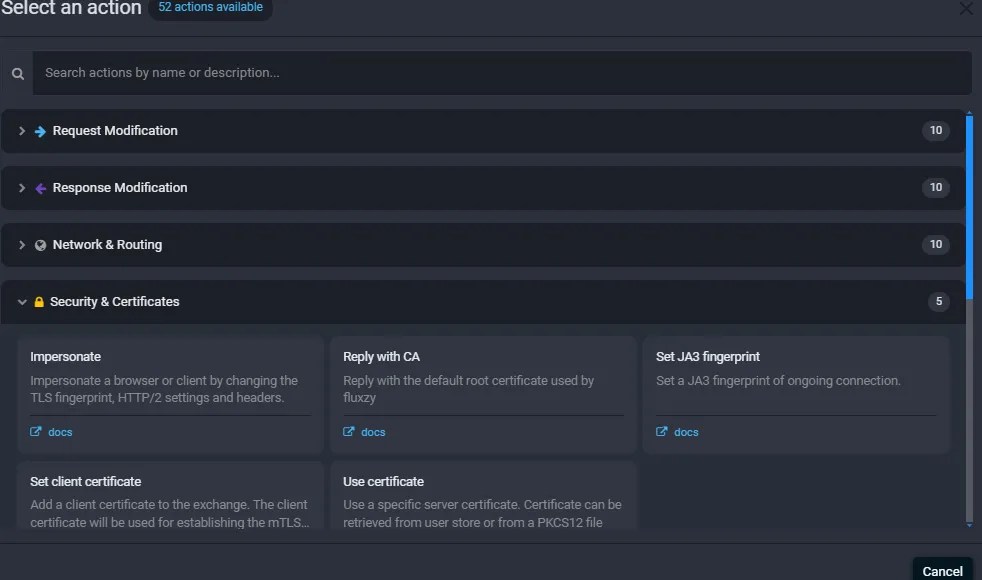
The Security and Certificates category holds the TLS and certificate actions:
Creating and scoping a rule works the same for every action. If you are new to the rules engine, start with modifying traffic with rules, which covers Add rule, the action picker, and the Apply When filter in detail.
Impersonate a real browser
This is the action people reach for most. Impersonate makes Fluxzy mimic a chosen browser on the upstream connection: it sets the TLS fingerprint (JA3), the HTTP/2 settings, and the matching request headers in one step. To a server that fingerprints clients to block bots and non-browser tools, your traffic now looks like a genuine browser.
- Add rule, then choose Impersonate (under Security and Certificates).
- Pick an Impersonate profile from the dropdown.
- In Apply When, scope the rule to the host that fingerprints you (here, a Hostname filter set to
api.example.com). - Save.
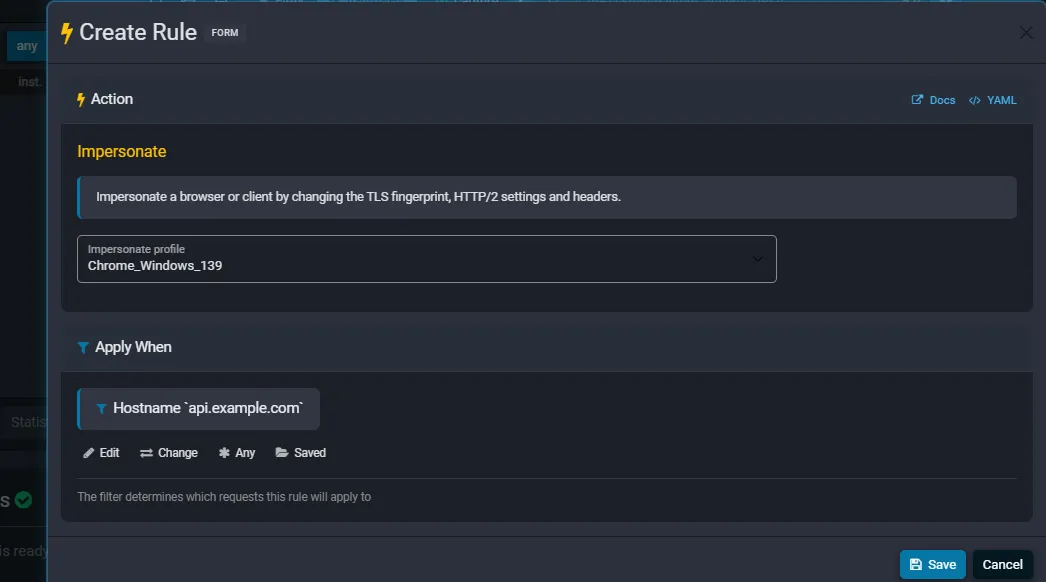
The bundled profiles are named Browser_Platform_Version. At the time of writing they include Chrome_Windows_131, Chrome_Windows_139, Chrome_Android_131, Edge_Windows_131, Firefox_Windows_133, and Firefox_Windows_142.
Requires the Bouncy Castle TLS provider. Impersonation (and raw JA3 below) only takes effect when Fluxzy uses Bouncy Castle as its SSL provider, because that is the stack that can replay an arbitrary TLS fingerprint. Turn it on under Settings > Global Settings > Certificates > SSL Settings > Use Bouncy Castle as SSL provider. The rule editor warns you if it is off.
Set a JA3 fingerprint manually
If you already have a specific JA3 string you want to replay, Set JA3 fingerprint applies just that string to the TLS handshake, without the HTTP/2 and header changes that Impersonate also makes. It is the lower-level, do-it-yourself version of the same idea, and it has the same Bouncy Castle requirement. For most cases, prefer Impersonate and its ready-made profiles, and reach for the raw JA3 action when you are reproducing one exact fingerprint.
Pin a hostname to a fixed IP with Spoof DNS
Spoof dns overrides name resolution for matching traffic. Instead of asking the system resolver where a hostname lives, Fluxzy connects to the IP and port you specify. This is the classic way to send production traffic to a staging box or a local server without touching hosts files or DNS.
- Add rule, then choose Spoof dns (under Network and Routing).
- Set Remote host ip (for example
127.0.0.1). Leave it blank to keep the DNS-resolved IP. - Set Remote host port (for example
8080). Leave it0to keep the original port. - In Apply When, scope it to the hostname you want to redirect.
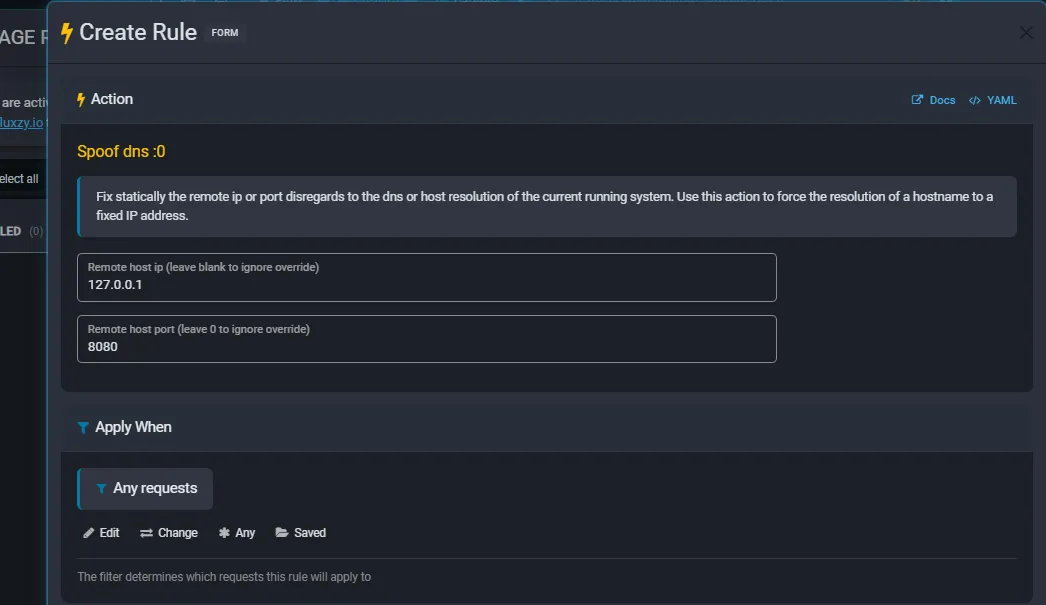
Unlike Forward request to, which rewrites the request URL and acts as a reverse proxy, Spoof dns keeps the original request and Host header intact and only changes where the TCP connection goes. Use Spoof DNS when you want the same request to reach a different machine.
Resolve names over DNS-over-HTTPS
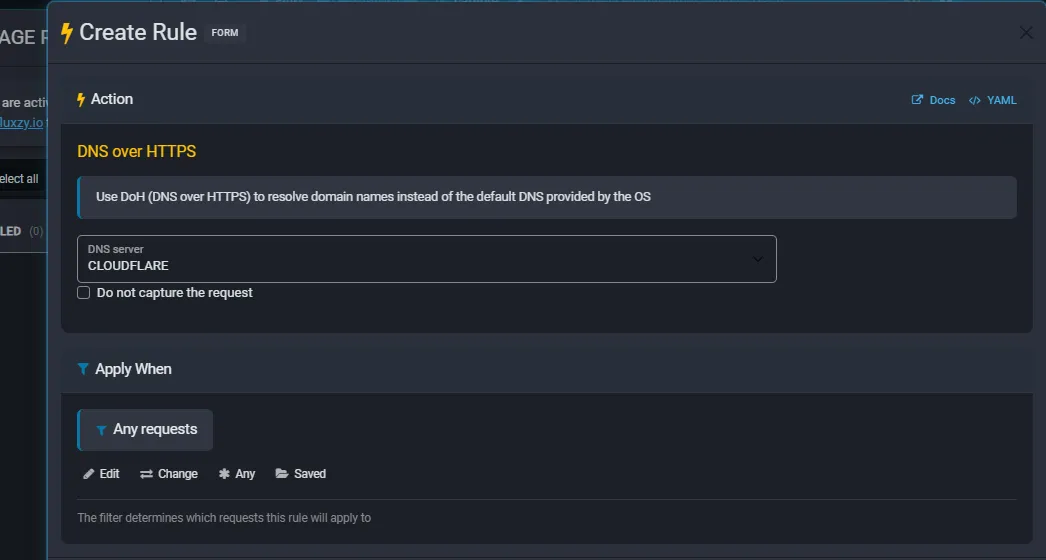
DNS over HTTPS tells Fluxzy to resolve hostnames through a DoH server instead of the operating system resolver. This is useful when the OS resolver is poisoned, restricted, or simply not what you want to test against.
- Add rule, then choose DNS over HTTPS (under Network and Routing).
- Pick a DNS server. The built-in choices are
GOOGLEandCLOUDFLARE, and you can also type the full URL of any DoH endpoint. - Optionally tick Do not capture the request so the DoH lookups themselves are not recorded in your exchange list.
Force the HTTP version (and prove it)
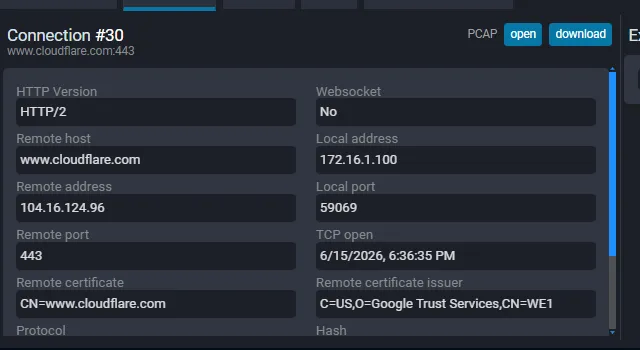
Force using HTTP/1.1 and Force using HTTP/2.0 pin the protocol that Fluxzy negotiates with the remote server. The version is enforced through ALPN during the TLS handshake. This is handy for testing how a server or client behaves on a specific protocol, or for working around an HTTP/2 implementation bug.
Here is the effect, end to end. First, a request to www.cloudflare.com with no rule: Fluxzy and the server negotiate HTTP/2, shown in the exchange's Connection tab.
Now add a Force using HTTP/1.1 rule (left at Any requests so it applies to all traffic), save it, and repeat the request. The same host now connects over HTTP/1.1:
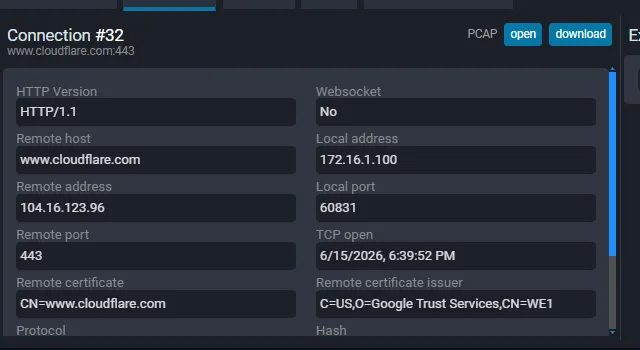
The HTTP Version field flipped from HTTP/2 to HTTP/1.1, confirming the rule reshaped the upstream connection. Two things to keep in mind:
- Force using HTTP/2.0 breaks the exchange if the remote does not support HTTP/2, and it is ignored for plain (non-TLS) traffic because cleartext HTTP/2 (h2c) is not supported.
- The forced version applies to the Fluxzy to remote leg. Your client still talks to Fluxzy however it normally would.
Use your own certificates
Two actions let you control certificates on the connection:
- Use certificate presents a specific server certificate to the client instead of the one Fluxzy generates. You can load it from the current user certificate store (by thumbprint) or from a PKCS#12 file (
.p12or.pfx) with a password. The editor has a Check certificate button that validates your choice before you save. - Set client certificate (its sibling, also under Security and Certificates) attaches a client certificate so Fluxzy can complete mTLS when the remote server requests one.
Both are scoped like any other rule, so you can present one certificate to a single host and leave everything else untouched.
A note on timing and scope
These actions run early, when Fluxzy first learns the destination authority and before it opens the upstream connection, so a host or URL filter is the right way to scope them. Because they fire before any response exists, a response-stage filter (for example a status-code filter) does not apply: the rule editor shows a "Rule is out of scope" warning if you pick one. Stick to request-stage filters such as Hostname, Authority, or Full url.
Frequently asked questions
What does "below the HTTP layer" actually mean?
It means the parts of a connection that exist underneath the HTTP request and response: the TLS handshake (including the JA3 fingerprint and HTTP/2 settings), DNS name resolution, the negotiated HTTP version, and the certificates exchanged. Fluxzy can modify all of these with rules.
Why does Impersonate need Bouncy Castle?
Replaying an arbitrary TLS fingerprint requires fine control over the handshake that the default OS TLS stack does not expose. Fluxzy's Bouncy Castle provider does, so Impersonate and Set JA3 fingerprint only take effect when it is enabled (Settings > Certificates > SSL Settings).
How do I confirm a below-HTTP change actually happened?
Open the exchange and look at the Connection tab. It reports the negotiated HTTP Version, the remote host and address, the ports, and the certificate details, so you can verify the version, routing, and certificate that were really used (as shown in the Force HTTP version example above).
Spoof DNS or Forward request to: which should I use?
Use Spoof dns to send the same request to a different IP or port while keeping the original URL and Host header. Use Forward request to when you want to rewrite the destination URL and have Fluxzy act as a reverse proxy (it also sets the Host header and can switch protocol).
Do these actions apply to traffic already in the list?
No. Like all rules, they apply to connections opened after the rule is enabled. Re-issue the request to see the change.
Can I combine several of these on one connection?
Yes. You can stack rules (for example impersonate a browser and force HTTP/2 on the same host). Rules run top to bottom in the ENABLED column, so order matters when more than one matches.
Next steps
- Learn the rules engine end to end in modifying traffic with rules.
- Capture and decrypt the traffic you want to reshape first with capturing HTTPS traffic.
- Inspect the result on the Connection tab in exploring exchange details.
- Browse the complete actions and filters reference.