How to create a self-signed certificate for HTTPS interception (and get it right)
Most tutorials on creating self-signed certificates are written for web servers. You generate a cert, slap it on nginx, done. But if you're creating a certificate for an MITM debugging proxy, the requirements are different, and getting them wrong means browsers will reject your certificate or your proxy won't be able to sign leaf certificates at all.
Update (2026): The CA/Browser Forum passed Ballot SC-081 in April 2025, phasing publicly trusted TLS certificate lifetimes down to just 47 days by 2029. Let's Encrypt is moving even faster, targeting 45 days by February 2028. This guide has been updated to reflect that context - though as you'll see, these changes don't affect private root CAs like the ones we're creating here.
I wrote this because I kept running into the same problem: every "how to create a self-signed certificate" guide out there optimizes for serving HTTPS, not for intercepting it. A root CA certificate used by a debugging proxy has specific constraints that a regular server certificate doesn't need. Get those wrong and you'll spend an hour wondering why Chrome shows NET::ERR_CERT_AUTHORITY_INVALID even though you installed the cert.
The certificate settings covered here apply to pretty much any MITM proxy tool out there, whether you're using Fluxzy, mitmproxy, or anything else that intercepts HTTPS by generating leaf certificates on the fly. The x509v3 extensions, key size, and signature algorithm requirements are the same across the board.
So here's the guide I wish I had.
Jump to what you need:
- How to create a self-signed certificate for HTTPS interception (and get it right)
Why create your own certificate?
Every MITM proxy ships with a built-in root certificate. For local debugging on your own machine, that default certificate is perfectly fine. Install it, trust it, move on.
But there are real reasons to generate your own.
deploying to production or staging. When you run an interception proxy on a server to capture traffic from test devices or services, you want a certificate with a known expiration, a recognizable Common Name, and one that your infra team can audit. Shipping an embedded cert from a third-party tool into production is the kind of thing that gets flagged in security reviews.
CI/CD pipelines. You might need to rotate certificates on a schedule, set specific validity periods, or match your existing PKI. Hardcoding a dependency on a tool's embedded cert is fragile and not great for reproducibility.
compliance and auditing. Some environments require every trusted root CA to be documented and traceable. A certificate you generated, with your organization's name on it, is a lot easier to justify than "it's the default one from the proxy."
controlling the x509v3 extensions. This is the one most people miss. A root CA certificate for MITM usage needs specific extensions that generic certificate tutorials don't always include. If your certificate is missing basicConstraints: CA:TRUE or the keyCertSign key usage, your proxy literally cannot sign the leaf certificates it generates on the fly. Browsers will reject every intercepted connection.
testing certificate edge cases. Short validity periods, unusual key sizes, specific subject fields. When you're testing how your application handles certificates, you need full control.
What makes a certificate MITM-friendly?
This is the part most generic tutorials get wrong. A root CA certificate used by a debugging proxy isn't a server certificate. It's a certificate authority that will sign hundreds of leaf certificates on the fly, one for every hostname your proxy intercepts. That means it needs specific x509v3 extensions that a regular self-signed cert doesn't.
Here's what matters:
basicConstraints: CA:TRUE (critical)
This is non-negotiable. The certificate must be marked as a CA certificate. Without this, browsers and TLS libraries will refuse to accept leaf certificates signed by it. Mark it as critical so there's no ambiguity.
A common mistake: many tutorials generate a self-signed certificate with CA:FALSE (or omit the extension entirely) because they're making a server certificate. If you use that as your proxy's root, every single intercepted connection will fail.
keyUsage: keyCertSign (critical)
The certificate needs the keyCertSign usage flag. This is what authorizes it to sign other certificates. Without it, even if CA:TRUE is set, some implementations will reject the chain. Adding cRLSign is good practice too, though not strictly required for most debugging scenarios.
signature algorithm: SHA-256
SHA-1 is dead. Chrome, Firefox, Safari, and Edge all reject certificates signed with SHA-1. Always use SHA-256 (or SHA-384/SHA-512, but SHA-256 is the standard). This applies both to the root CA's own signature and to the leaf certificates your proxy generates.
key algorithm: RSA or ECDSA
RSA is the default and the safest choice for compatibility. Every browser, OS, and TLS library accepts a 2048-bit RSA root without complaint, including old and embedded clients. If you don't have a specific reason to do otherwise, stick with RSA.
ECDSA (elliptic curve) is the modern alternative, and it has a real advantage for a debugging proxy. Your proxy signs a brand new leaf certificate for every hostname it intercepts, and elliptic curve signing is significantly faster than RSA while producing smaller keys and certificates. On a busy capture session that adds up.
The tradeoff is reach. ECDSA P-256 is supported by every modern browser and operating system, but some legacy or embedded clients still only speak RSA. If you're intercepting traffic from old devices or unusual HTTP stacks, RSA is the safer bet. For everything else, ECDSA P-256 is a great default.
Curve picking, if you go ECDSA:
- P-256 is the sweet spot. Universal modern support, roughly equivalent to RSA 3072, fast.
- P-384 if your security policy wants a larger margin. Still widely supported.
- P-224 and P-521 exist but you rarely want them. P-224 has spotty support, and P-521 is overkill while being slightly less universally accepted.
Whichever curve you pick, the hash stays SHA-256 (the signature is ECDSA-with-SHA-256), so the signature algorithm advice above still holds.
key size: 2048 bits
2048-bit RSA is the sweet spot for MITM proxies in 2026. Here's why:
- Every major browser accepts 2048-bit keys without complaint
- Going below 2048 will get your certificate rejected outright by Chrome and Firefox
- Going to 4096 is more secure but adds real overhead. Your proxy generates and signs a new leaf certificate for every hostname it intercepts. That's a lot of RSA operations, and 4096-bit signing is measurably slower
- NIST recommends 2048-bit until 2030 for most use cases
If your security policy mandates 4096, go for it. For debugging and testing, 2048 is the right tradeoff. This setting only applies to RSA; if you chose an ECDSA curve, the key length is fixed by the curve and any key size option is ignored.
validity period
For production deployments, keep it reasonable. The CA/Browser Forum's Ballot SC-081 (passed April 2025) is phasing down maximum lifetimes for publicly trusted TLS certificates - from 398 days to 200 days in 2026, 100 days in 2027, and just 47 days by 2029. Let's Encrypt is moving even faster, cutting their certificates from 90 to 45 days by February 2028. None of this applies to private root CAs like the one you're creating here - self-signed certificates you install manually can have whatever validity your policies dictate. But staying within reasonable bounds (say, 395 days or less for production) signals good hygiene. For CI pipelines, shorter is better — generate a cert, run the pipeline, throw it away.
For a long-lived debugging CA on your workstation, up to 10 years is common. Just know when it expires.
subject fields
Common Name (CN) is the only required field. Make it descriptive: "My Company MITM Root CA" or "Dev Team Debug Proxy." Organization, Locality, State, and Country are optional but help identify the certificate in trust stores, especially in shared environments.
option 1: openssl
OpenSSL is the gold standard. Its random number generator is production-grade, using the OS entropy pool. When the certificate will be deployed to real infrastructure, this is the right choice.
The key thing here is the -addext flags that set the proper x509v3 extensions for a CA certificate. Most tutorials skip these, which is exactly why your proxy's cert gets rejected.
linux / macos
openssl req -x509 \
  -newkey rsa:2048 \
  -sha256 \
  -days 395 \
  -keyout rootCA.key \
  -out rootCA.crt \
  -subj "/CN=My Debugging Root CA/O=My Company/C=FR" \
  -addext "basicConstraints=critical,CA:TRUE" \
  -addext "keyUsage=critical,keyCertSign,cRLSign" \
  -nodes

# bundle into PKCS#12 for use with debugging proxies
openssl pkcs12 -export \
  -out rootCA.p12 \
  -inkey rootCA.key \
  -in rootCA.crt \
  -passout pass:your_password
Prefer ECDSA? Swap the key generation flag and keep everything else the same:
openssl req -x509 \
  -newkey ec -pkeyopt ec_paramgen_curve:prime256v1 \
  -sha256 \
  -days 395 \
  -keyout rootCA.key \
  -out rootCA.crt \
  -subj "/CN=My Debugging Root CA/O=My Company/C=FR" \
  -addext "basicConstraints=critical,CA:TRUE" \
  -addext "keyUsage=critical,keyCertSign,cRLSign" \
  -nodes
prime256v1 is OpenSSL's name for P-256; use secp384r1 for P-384. The PKCS#12 bundling step is identical.
windows
Windows doesn't ship with OpenSSL, but if you have Git installed (and you probably do), you already have it. Find it at C:\Program Files\Git\usr\bin\openssl.exe, or just open Git Bash where it's on the PATH.
"C:\Program Files\Git\usr\bin\openssl.exe" req -x509 ^
  -newkey rsa:2048 ^
  -sha256 ^
  -days 395 ^
  -keyout rootCA.key ^
  -out rootCA.crt ^
  -subj "/CN=My Debugging Root CA/O=My Company/C=FR" ^
  -addext "basicConstraints=critical,CA:TRUE" ^
  -addext "keyUsage=critical,keyCertSign,cRLSign" ^
  -nodes

"C:\Program Files\Git\usr\bin\openssl.exe" pkcs12 -export ^
  -out rootCA.p12 ^
  -inkey rootCA.key ^
  -in rootCA.crt ^
  -passout pass:your_password
Or just use Git Bash and run the linux version. Life's too short for caret line continuations.
verify your certificate
After generating, always check that the extensions are correct:
openssl x509 -in rootCA.crt -text -noout | grep -A2 "Basic Constraints\|Key Usage"
You should see:
X509v3 Basic Constraints: critical
    CA:TRUE
X509v3 Key Usage: critical
    Certificate Sign, CRL Sign
If CA:TRUE or Certificate Sign is missing, your proxy will not be able to sign leaf certificates and browsers will reject everything.
option 2: fluxzy CLI
If you have Fluxzy installed, it can generate certificates directly with the right extensions baked in. No need to remember the openssl flags or worry about missing the CA constraint.
fluxzy cert create rootCA.p12 "My Debugging Root CA" \
  --validity 395 \
  --key-size 2048 \
  --O "My Company" \
  --C "FR" \
  --password your_password
One command, one output file. The certificate is created as a PKCS#12 archive with the proper CA extensions already set.
ECDSA support (fluxzy 1.37.2+). Pass --key-algorithm to generate an elliptic curve root instead of RSA. Accepted values are Rsa (the default), EcdsaP256, EcdsaP384, EcdsaP521, and EcdsaP224:
fluxzy cert create rootCA.p12 "My Debugging Root CA" \
  --validity 395 \
  --key-algorithm EcdsaP256 \
  --O "My Company" \
  --C "FR" \
  --password your_password
When you pick an ECDSA curve, --key-size is ignored since the key length is fixed by the curve.
You can then set it as the default for Fluxzy:
fluxzy cert default rootCA.p12
Check if it's trusted on the current machine:
fluxzy cert check rootCA.p12
Install it into the system trust store (requires elevation):
fluxzy cert install rootCA.p12
See the full documentation for the cert command at /resources/cli/command-cert.
option 3: fluxzy desktop
If you prefer a GUI, Fluxzy Desktop has this built in. Go to Tools > Create Root Certificate.
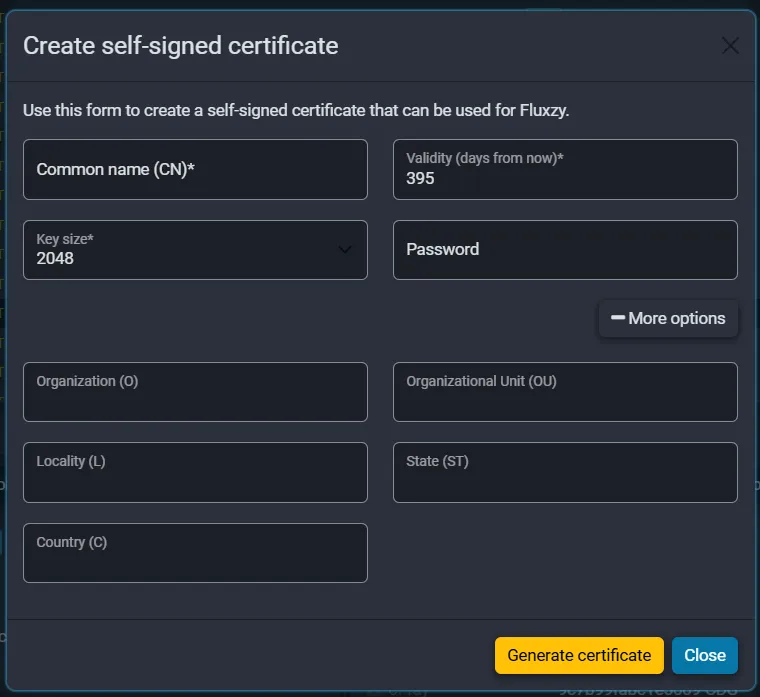
Fill in the Common Name, set validity (395 days is a sensible default), key size (2048), and optionally the organization details under "More options." Click Generate certificate and you're done.
This is the fastest option when you already have Fluxzy Desktop open. No terminal, no flags to remember, no typos in subject strings.
using your certificate
However you created it, you now have a .p12 file. Here's how to use it.
In Fluxzy Desktop: go to the certificate settings and select your custom PKCS#12 file as the root CA. See the full guide at /features/changing-root-certificate.
In Fluxzy CLI: use fluxzy cert default your-cert.p12 to set it as the default, or pass it via the FLUXZY_ROOT_CERTIFICATE environment variable for CI scenarios.
On client devices: export the public certificate (the .crt file, or extract it from the .p12) and install it in the trust store of whatever device or browser you're intercepting. This is the same process whether you're using the embedded default or your custom cert.
quick reference
| Setting | Recommended value | Why |
|---|---|---|
| Key algorithm | RSA (max compatibility) or ECDSA P-256 (faster signing) | RSA reaches every client; ECDSA signs each leaf cert faster |
| Key size | 2048 bits (RSA only) | Universal browser support, good signing performance |
| Signature algorithm | SHA-256 | SHA-1 rejected by all modern browsers |
| basicConstraints | CA:TRUE, critical | Required for CA certificates that sign leaf certs |
| keyUsage | keyCertSign, cRLSign, critical | Authorizes the cert to sign other certificates |
| Validity | 395 days (prod) / 3650 days (dev) | Stay within browser policies for production |
| Format | PKCS#12 (.p12) | Standard format accepted by most proxy tools |
The default embedded certificate works fine for casual debugging. But the moment you're dealing with shared environments, CI pipelines, production capture, or security-conscious teams, spending 30 seconds to generate your own gives you control, traceability, and the right x509v3 extensions to keep every browser happy.